
What Travels With an Invoice: Source Documents and Backup
The backup documents sent with each invoice, and the payment details printed on it.
1 min readUpdated
Invoices go out with their backup. "duebird adds the documents an invoice's lines came from automatically."
The invoice also prints how to pay, including a "Pay online" link and a QR code.
How It Works
- SENT WITH THE INVOICE: the source documents attached as backup, such as the customer's PO. When the lines cite no documents, it reads "Nothing attached".
- HOW TO PAY: the payment methods from Settings > Payments, plus "Pay online" and "Or scan the code with your phone."
- Customer PO: printed under the invoice details when the invoice has one.
- Footer: the line from Settings > Invoices, printed at the foot of every invoice.
Check What Was Attached
- Open a sent invoice from Invoices.
- On the Invoice tab, scroll to SENT WITH THE INVOICE.

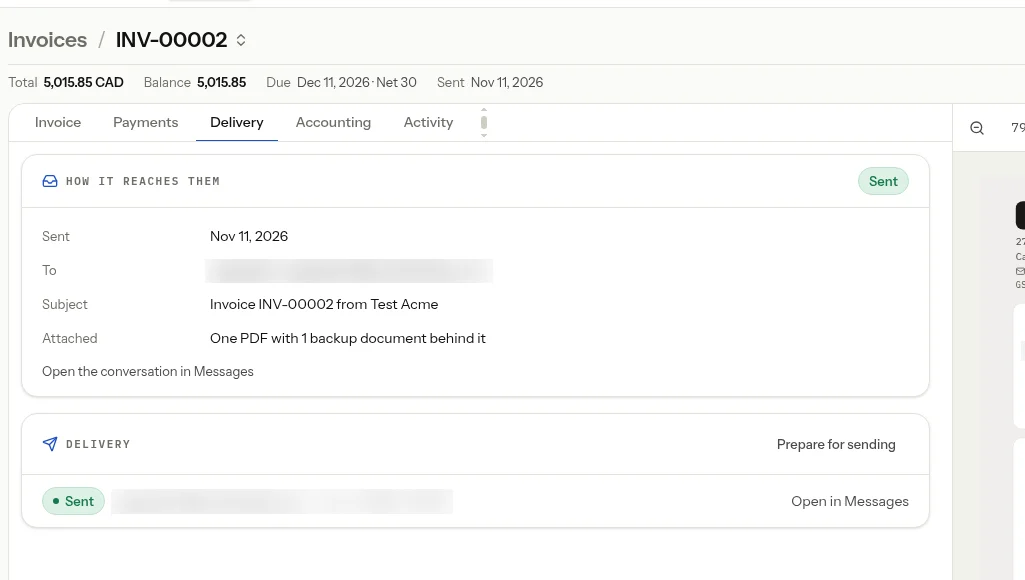
- Click Delivery. Attached shows what went out, for example one PDF with its backup documents.
Check the Payment Details
- Click Preview (P), or read the preview beside the invoice.
- Check the HOW TO PAY box, the Customer PO and the footer.
Tips
- Bill from orders made from POs. That is what puts the PO behind the invoice.
- Keep payment methods current in Settings > Payments. They print on every invoice.
- Use the footer for standing terms, such as interest on late balances.
Frequently Asked Questions
Do I need to attach the PO myself?
No. duebird adds the documents the lines came from automatically.
Why does it say Nothing attached?
The invoice's lines cite no source documents, for example lines typed by hand.
Where do the payment details on the invoice come from?
From Settings > Payments.