
Invoice Delivery and Activity: Who Received It and What Changed
Check who an invoice went to and when, leave internal comments, and read every version and event.
1 min readUpdated
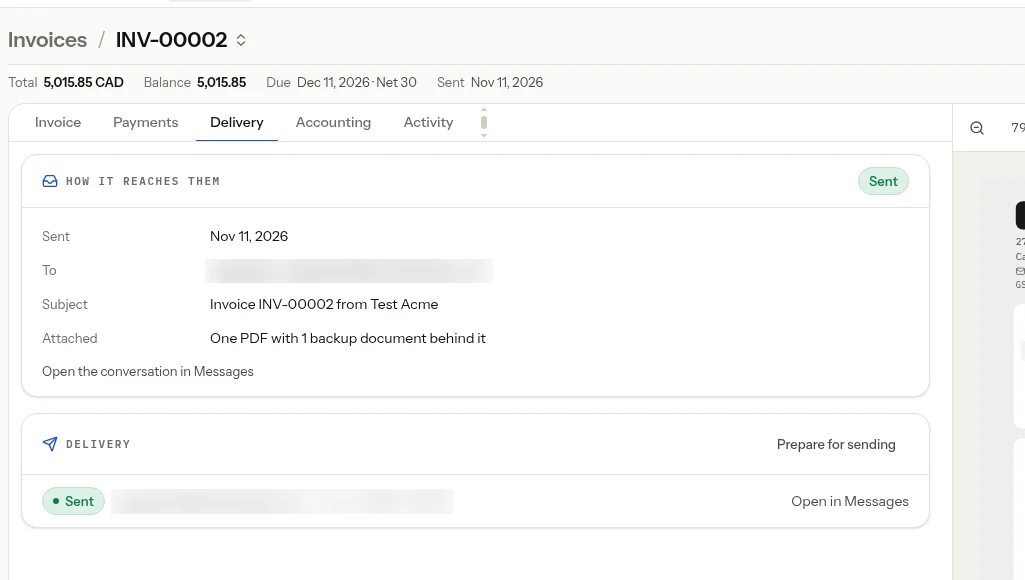
The Delivery tab shows how an invoice reached the customer: who it went to, the subject, what was attached and when.
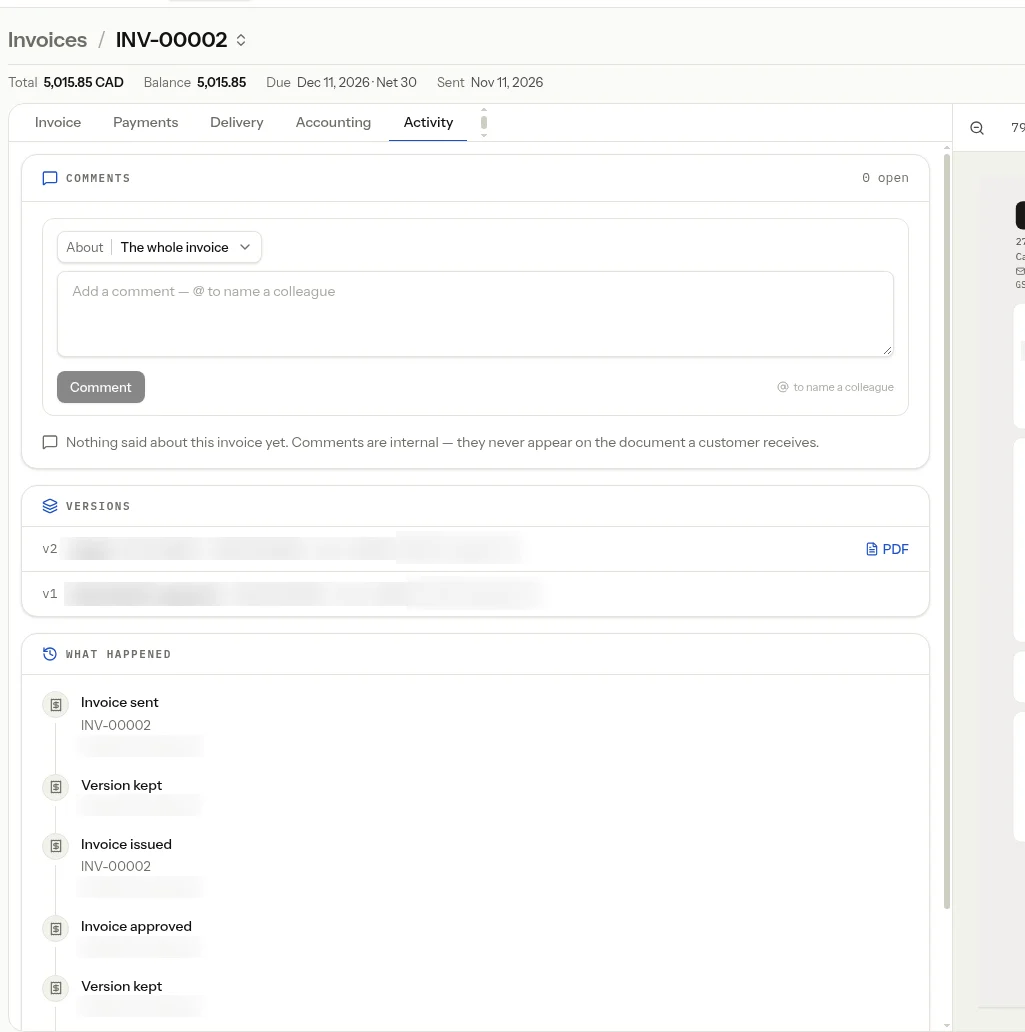
The Activity tab holds internal comments, every kept version and a list of what happened.
How It Works
- Delivery: HOW IT REACHES THEM, with Sent, To, Subject and Attached, and a link to open the conversation in Messages.
- Activity: COMMENTS, VERSIONS and WHAT HAPPENED.
"Comments are internal - they never appear on the document a customer receives."
Check Delivery
- Open the invoice from Invoices and click Delivery.
- Read Sent, To and Subject, such as the invoice number and your business name.
- Read Attached, for example one PDF with its backup documents behind it.
- Click Open the conversation in Messages to see the email thread.
Read Activity
- Click Activity.
- Under COMMENTS, add a comment. Type @ to name a colleague.
- Under VERSIONS, open the PDF of any kept version.
- Under WHAT HAPPENED, read each event with who and when, for example Invoice approved, Invoice issued and Invoice sent.
Tips
- Check Delivery first when a customer says they never got an invoice.
- Use comments for notes to your team. Customers never see them.
- Use VERSIONS to find the exact PDF that was issued.
Frequently Asked Questions
Can the customer see comments?
No. "Comments are internal - they never appear on the document a customer receives."
Where is the email thread?
Delivery > Open the conversation in Messages.
How do I prove what we sent?
Open the PDF under VERSIONS on the Activity tab, and check Attached on Delivery.