
Product and Unit Aliases: Match Your Customer's Wording
Teach duebird the names a customer uses for themselves, your products and units.
2 min readUpdated
Customers rarely use your names. Aliases tell duebird that their wording means your customer, product or unit.
duebird learns aliases as it reads, and you can add your own.
How It Works
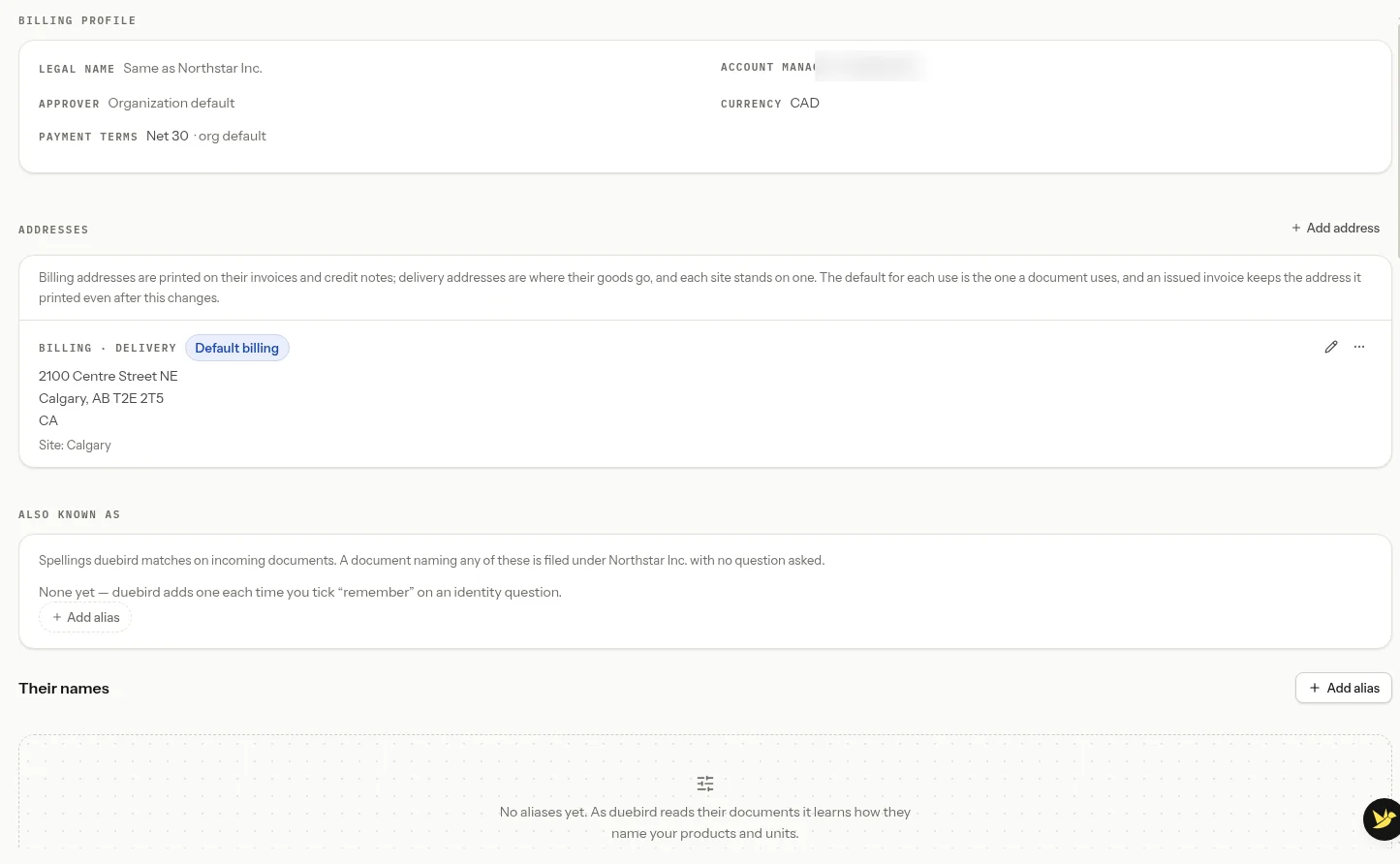
Aliases live on the customer's Details section:
- ALSO KNOWN AS: "Spellings duebird matches on incoming documents." A document naming any of them is filed under this customer "with no question asked." duebird adds one "each time you tick "remember" on an identity question."
- Their names: how the customer names your products and units.
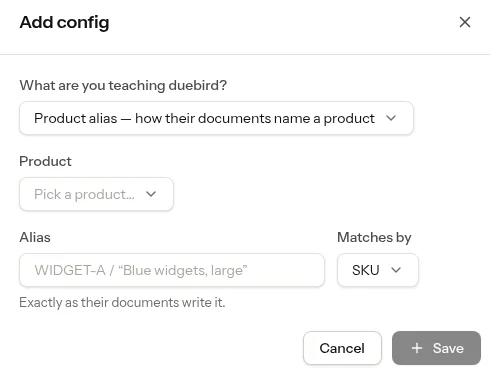
A product alias has a Product, the Alias ("Exactly as their documents write it.") and Matches by, such as SKU.
Add Another Name for the Customer
- Open the customer and click Details.
- Under ALSO KNOWN AS, click + Add alias.
- Type the name exactly as it appears on their documents, and save.
Add Their Name for a Product or Unit
- Under Their names, click + Add alias.
- Choose Product alias or Unit alias.
- Pick your product or unit, then type the Alias exactly as their documents write it.
- Click Save.
Tips
- Tick "remember" when duebird asks who a document is from. It saves an alias for next time.
- Copy the alias straight from the customer's PO, including spacing and abbreviations.
- Check Their names when a PO line keeps coming in unmatched.
Frequently Asked Questions
Why was a document filed under the wrong customer?
Check ALSO KNOWN AS. Any name listed there files the document under that customer.
Do I have to add aliases by hand?
No. duebird learns them as it reads, and adds one when you tick "remember".
Where are unit conversions?
On the product. Aliases cover wording; conversions cover quantities.