
Contacts, Invoice Recipients and Account Managers
Keep track of the customer's people, who receives invoices, and who on your team looks after them.
2 min readUpdated
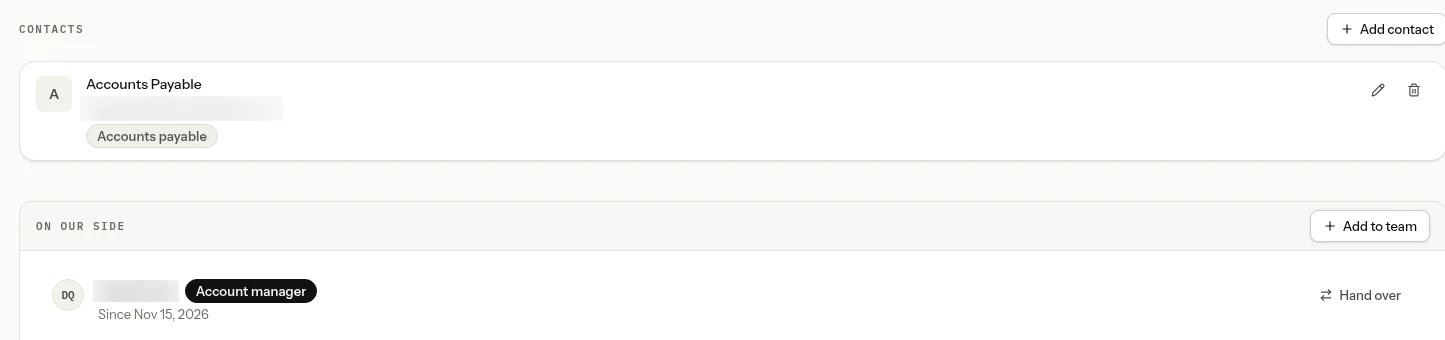
Contacts lists the customer's people and your team members on the account.
Billing roles on each contact decide where invoices, POs and payment questions go.
How It Works
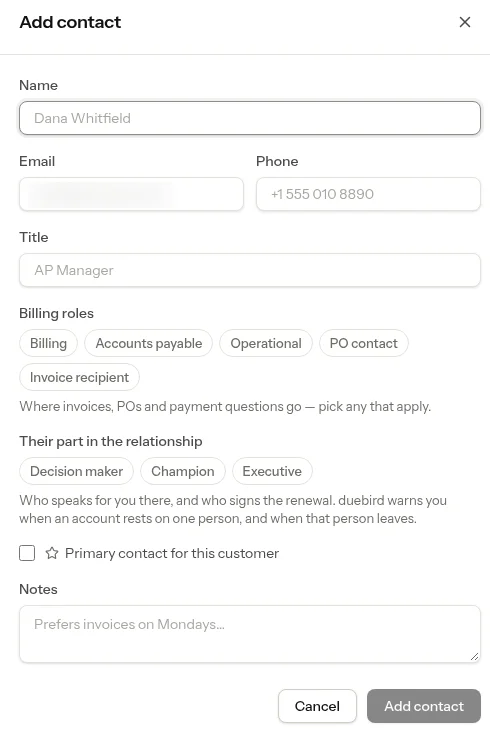
Add contact asks for:
- Name, Email, Phone and Title.
- Billing roles: Billing, Accounts payable, Operational, PO contact and Invoice recipient. "Where invoices, POs and payment questions go: pick any that apply."
- Their part in the relationship: Decision maker, Champion or Executive. duebird warns you when an account rests on one person, or when that person leaves.
- Primary contact and Notes.
Invoice emails go by default to contacts tagged Billing, Accounts payable or Invoice recipient.
ON OUR SIDE lists your team members on the account, such as the Account manager, with + Add to team and Hand over, "Hand this seat to somebody else".
Add a Contact
- Open the customer and click Contacts.
- Click + Add contact.
- Fill in their details and tick their billing roles.
- Choose their part in the relationship, if you know it.
- Click Add contact.
Change Who Looks After the Account
- Under ON OUR SIDE, click + Add to team to add a colleague.
- Click Hand over to hand this seat to somebody else.
Tips
- Tag whoever pays your invoices as Accounts payable or Invoice recipient.
- Record more than one decision maker so the account does not rest on one person.
- Hand over accounts before someone goes on leave.
Frequently Asked Questions
Who receives invoice emails?
Contacts tagged Billing, Accounts payable or Invoice recipient.
Can more than one person work on an account?
Yes. Use + Add to team under ON OUR SIDE.
Who becomes the account manager of a new customer?
It follows Settings > Relationships, for example whoever adds the customer.