
Account History and the Account Review
Follow every movement on a customer's account, and download an account review.
2 min readUpdated
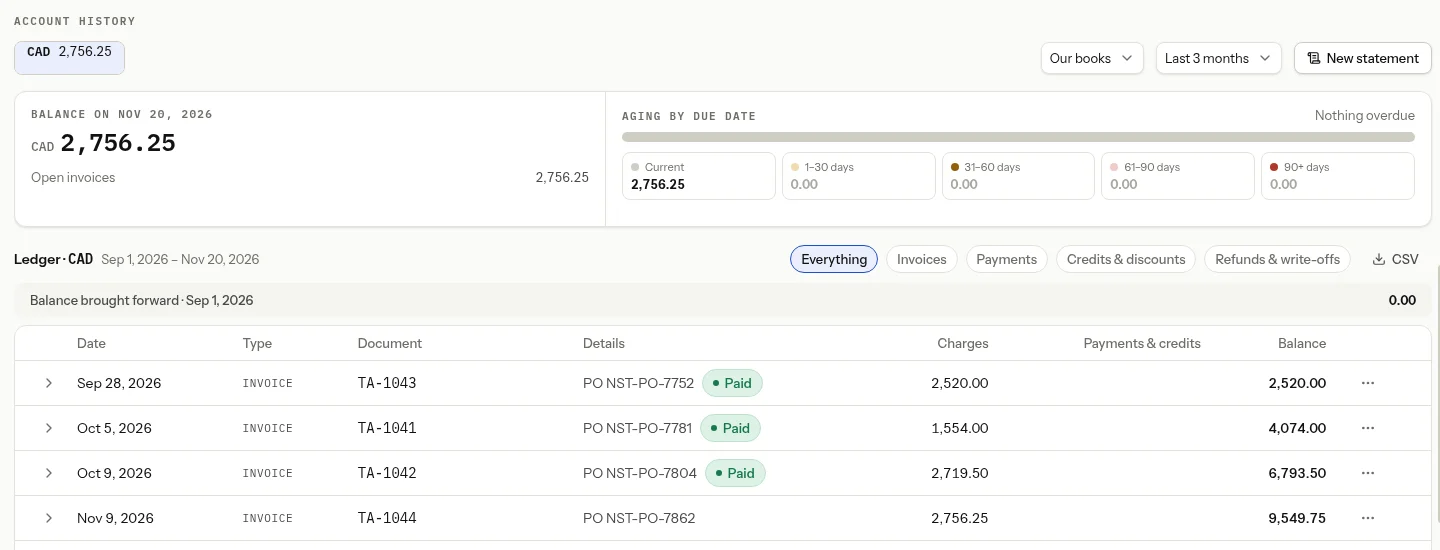
ACCOUNT HISTORY on Invoices & payments lists every movement on the account, with a running balance.
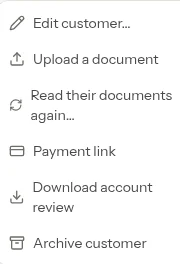
Download account review in the customer's more menu gives a summary of the account.
How It Works
ACCOUNT HISTORY has:
- A currency, Our books or Customer's view, and a period such as Last 3 months.
- Balance on the date, Open invoices and Aging by due date.
- Filters: Everything, Invoices, Payments, Credits & discounts and Refunds & write-offs, and CSV to export.
- Columns: Date, Type, Document, Details, Charges, Payments & credits and Balance, between a balance brought forward and a balance carried forward.
"The balance column is the account after each line, whatever the filter."
Our books includes write-offs. Customer's view shows what the customer owes by their own statement, without write-offs.
The account review covers what was billed, what was paid (including average days to pay and promises), what is coming up, and the account's status and owner.
Read the Account History
- Open the customer and click Invoices & payments.
- Scroll to ACCOUNT HISTORY.
- Choose the period and the view, then pick a filter.
- Click CSV to export it.
Download the Account Review
- On the customer, open the more menu next to New.
- Choose Download account review.
Tips
- Use Customer's view when you compare with the customer's own records.
- Filter to Credits & discounts when a customer asks why their balance dropped.
- Download the account review before a renewal or account meeting.
Frequently Asked Questions
Why do Our books and Customer's view differ?
Our books includes write-offs. Customer's view does not.
Does the balance change when I filter?
No. The balance column is the account after each line, whatever the filter.
Can I export a customer's history?
Yes. Use CSV on ACCOUNT HISTORY.