
Find Your Way Around: Navigation, Top Bar and the + New Menu
What is in the sidebar, what the top bar does from any page, and the patterns every list shares.
2 min readUpdated
Every Duebird page has the same layout: a sidebar on the left, a top bar with actions you can use anywhere, and the main work area.
The floating bird button at the bottom right opens duebird on every page except Chat.
How It Works
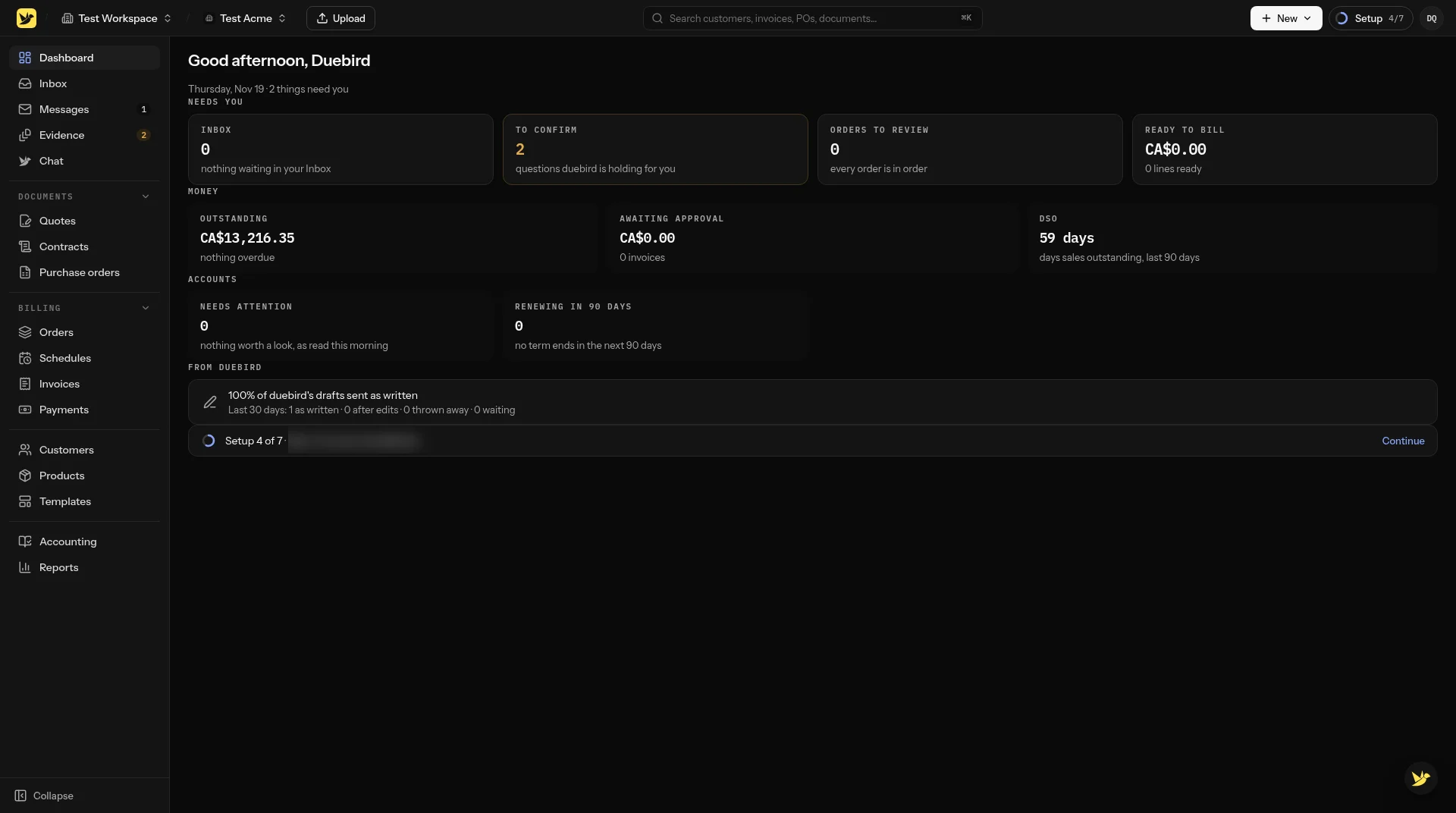
The sidebar holds your daily work at the top, then documents, billing and your reference data. Badges show when something is waiting. Click Collapse at the bottom to make the sidebar narrower.
- Work: Dashboard, Inbox, Messages, Evidence, Chat.
- DOCUMENTS: Quotes, Contracts, Purchase orders.
- BILLING: Orders, Schedules, Invoices, Payments.
- Other: Customers, Products, Templates, Accounting, Reports.
Use the Top Bar
- duebird logo: back to the Dashboard.
- Workspace switcher: lists your workspaces and your role, with Workspace settings and Create workspace.
- Organization switcher: lists the organizations (legal entities) in the workspace, with Organization settings and Create organization.
- Upload: opens Upload documents. See Upload Documents to duebird.
- Search: "Search customers, invoices, POs, documents..." (⌘K, Ctrl+K on Windows, or /).
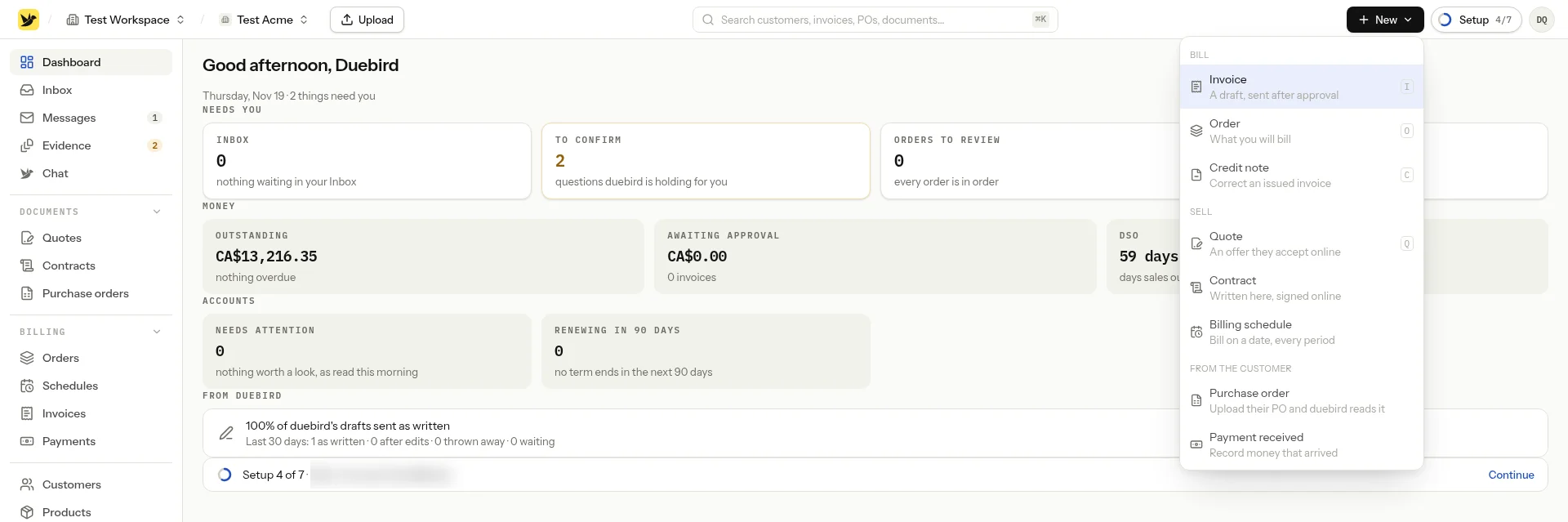
- + New: create anything, grouped into BILL, SELL and FROM THE CUSTOMER.
- Setup: shows setup progress, for example 4/7, and the next step.
- Avatar menu: your email, Settings, Theme (Light, Dark, System), Keyboard shortcuts and Sign out.
Create Anything From + New
- BILL: Invoice ("A draft, sent after approval", key I), Order ("What you will bill", key O), Credit note ("Correct an issued invoice", key C).
- SELL: Quote ("An offer they accept online", key Q), Contract ("Written here, signed online"), Billing schedule ("Bill on a date, every period").
- FROM THE CUSTOMER: Purchase order ("Upload their PO and duebird reads it"), Payment received ("Record money that arrived").
Search
- Click Search or press ⌘K (Ctrl+K on Windows and Linux) or /.
- Type what you are looking for. "Nothing is searched until ↵", so press Enter to run it.
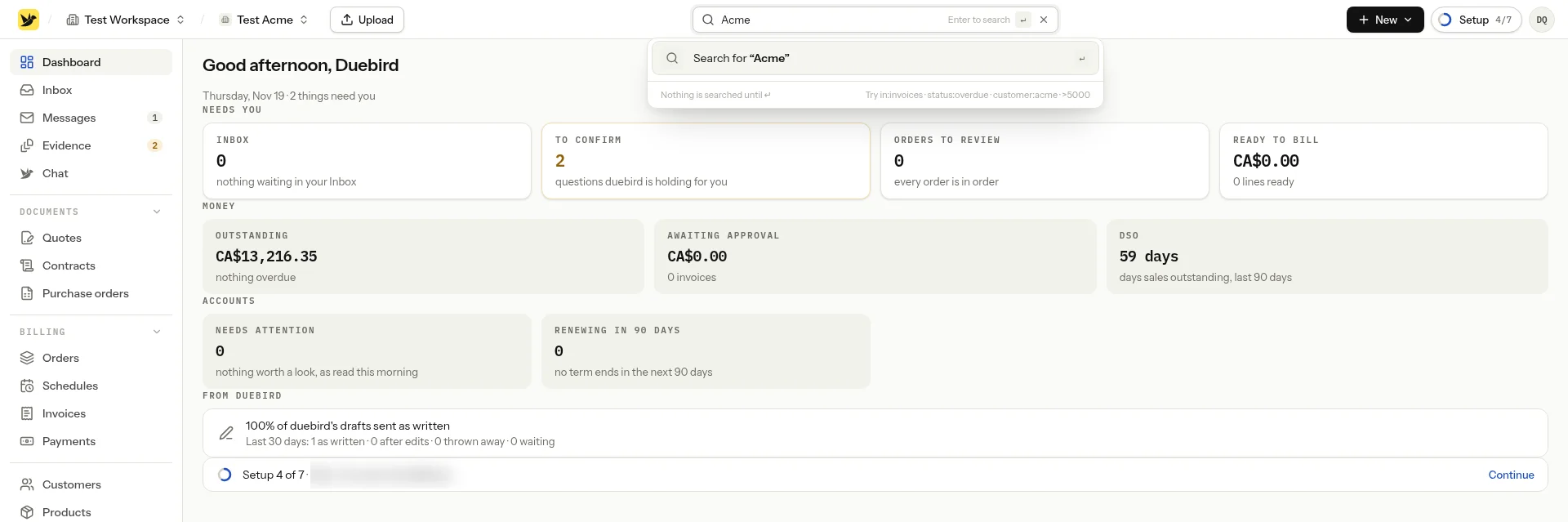
- To narrow results, use the operators the search box suggests, for example in:invoices status:overdue customer:acme >5000.
Know the List Patterns
- Filters: a Status filter with Select all, Cancel and Apply, plus a Customer filter and search.
- Rows: Expand shows each row's lines. Each row has an Actions menu. Rows sets how many rows show per page, for example 25.
- Detail pages: the duebird panel is scoped to that record.
Switch Between Light and Dark
Open the avatar menu, choose Theme, then Light, Dark or System.
Tips
- Press N on a list of orders, invoices, credit notes or quotes to start a new one.
- Press ? for the full list of shortcuts.
Frequently Asked Questions
Where is Settings?
In the avatar menu at the top right. Organization settings are also in the organization switcher.
Why did nothing happen when I typed in Search?
Search waits for Enter. "Nothing is searched until ↵".