
Upload Documents to duebird: POs, Contracts, Delivery Notes and Remittances
Hand duebird any customer document. It reads it, links it to the customer and asks you about anything it cannot settle.
2 min readUpdated
Upload a purchase order, a contract, a delivery note or a remittance from Upload in the top bar.
duebird reads it "in a conversation of its own" and asks you about whatever it cannot settle. "Nothing is written until you answer."
How It Works
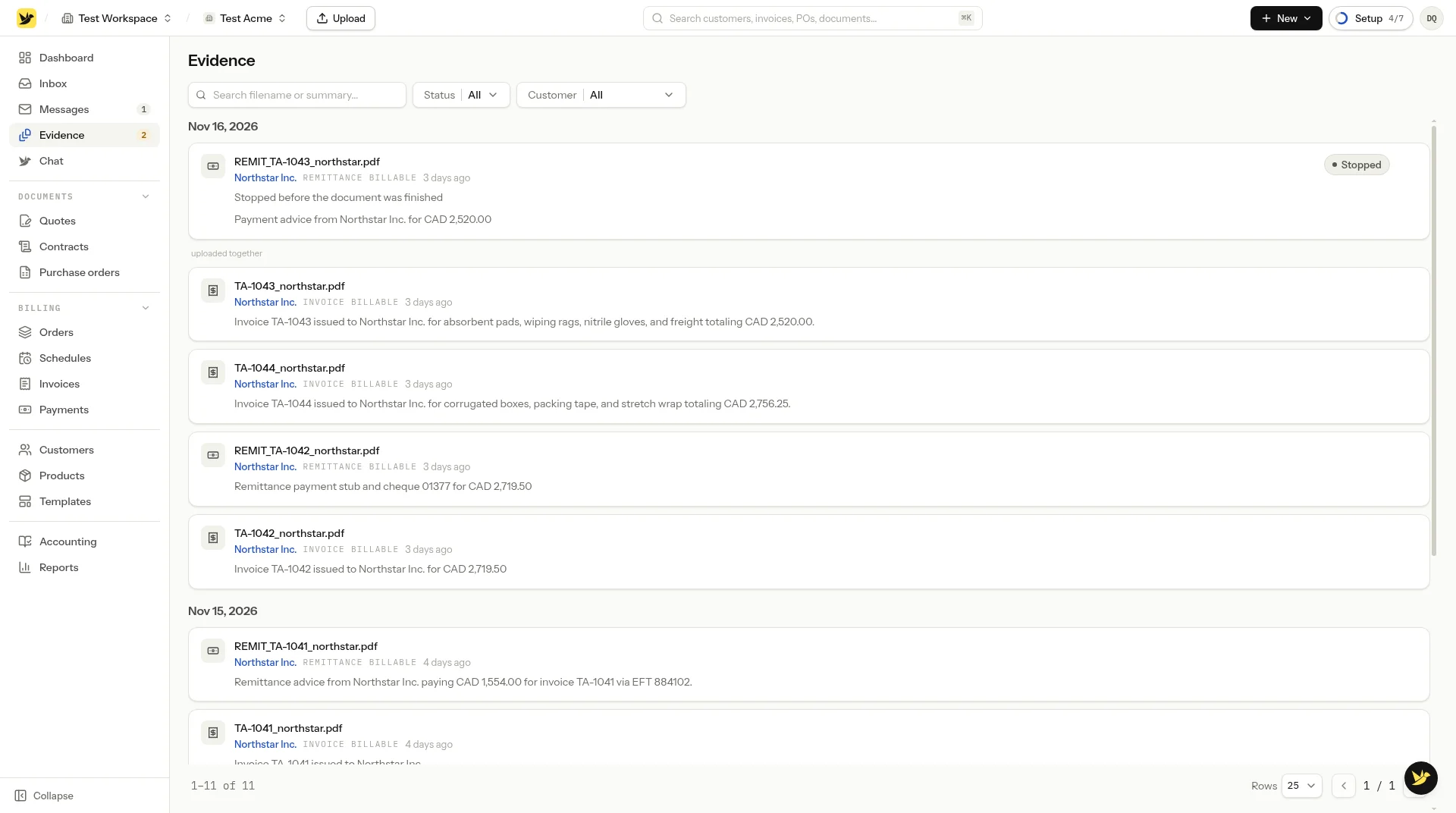
Each document appears in Evidence with its kind (for example INVOICE, PURCHASE ORDER or REMITTANCE), the customer and a one-line summary. If duebird has questions, the To confirm tile on the Dashboard counts them and FROM DUEBIRD shows the document with Answer. Open the document in Evidence to see what duebird did and what the document changed.
Upload From the Top Bar
- Click Upload in the top bar.
- Drag your documents into "Drop documents here, or browse", or click browse to pick them.
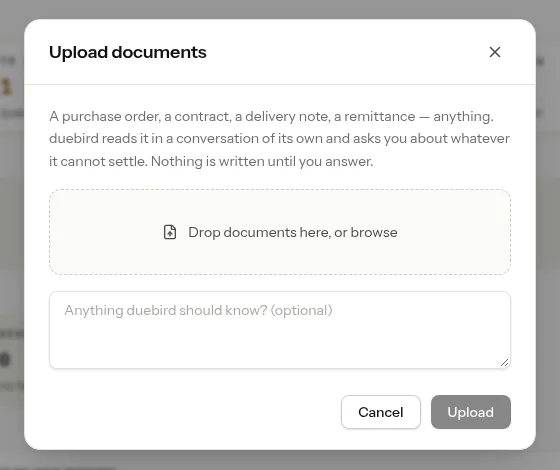
- Optional: add context in "Anything duebird should know?", for example which customer it is for if the document does not make that clear.
- Click Upload.
Send Documents Other Ways
- + New > Purchase order: "Upload their PO and duebird reads it".
- A customer record: drop files under ADD EVIDENCE (POs, contracts, delivery notes, photos, emails, spreadsheets).
- Chat or the assistant panel: attach a file with the paperclip.
- Email: forward documents to your duebird address. See Forward Your AR Mailbox.
- Another system: submit documents using an API token from Settings > API tokens.
Tips
- Files sent at the same time are marked "uploaded together".
- A document duebird recognises as a copy of an earlier one is tagged DUPLICATE, with Open the earlier copy.
- A document marked Stopped, for example "Stopped before the document was finished", was not read to the end. duebird stops when a document is a copy of one it already has, has nothing it can read or bill, or the run was cancelled. Open the card to see the reason. If it should be read, ask duebird about it from the document.
Frequently Asked Questions
Does uploading change anything straight away?
No. "Nothing is written until you answer." duebird reads the document and asks about anything it cannot settle.
Where do I find a document after I upload it?
In Evidence, grouped by date, with its kind, customer, summary and status.
Why is my document marked Stopped?
duebird stops when a document is a copy of one it already has, has nothing it can read or bill, or the run was cancelled. The card shows the reason.