
Messages: Read and Reply to Customer Email in Duebird
Messages keeps customer email in Duebird, tagged to the customer it belongs to.
2 min readUpdated
Messages is a built-in email client for accounts receivable. Received holds email sent to your duebird address: purchase orders, remittances and replies to invoices.
Each message is tagged with its customer.
How It Works
Messages has four folders. Set up email receiving first (see Forward Your AR Mailbox). To send from your own address, connect your mailbox (see Send From Your Own Domain or Mailbox).
- Received: email that arrived at your duebird address, tagged with the customer.
- Sent, Drafts and Spam. duebird leaves the reminders it drafts in Drafts, for you to read and send.
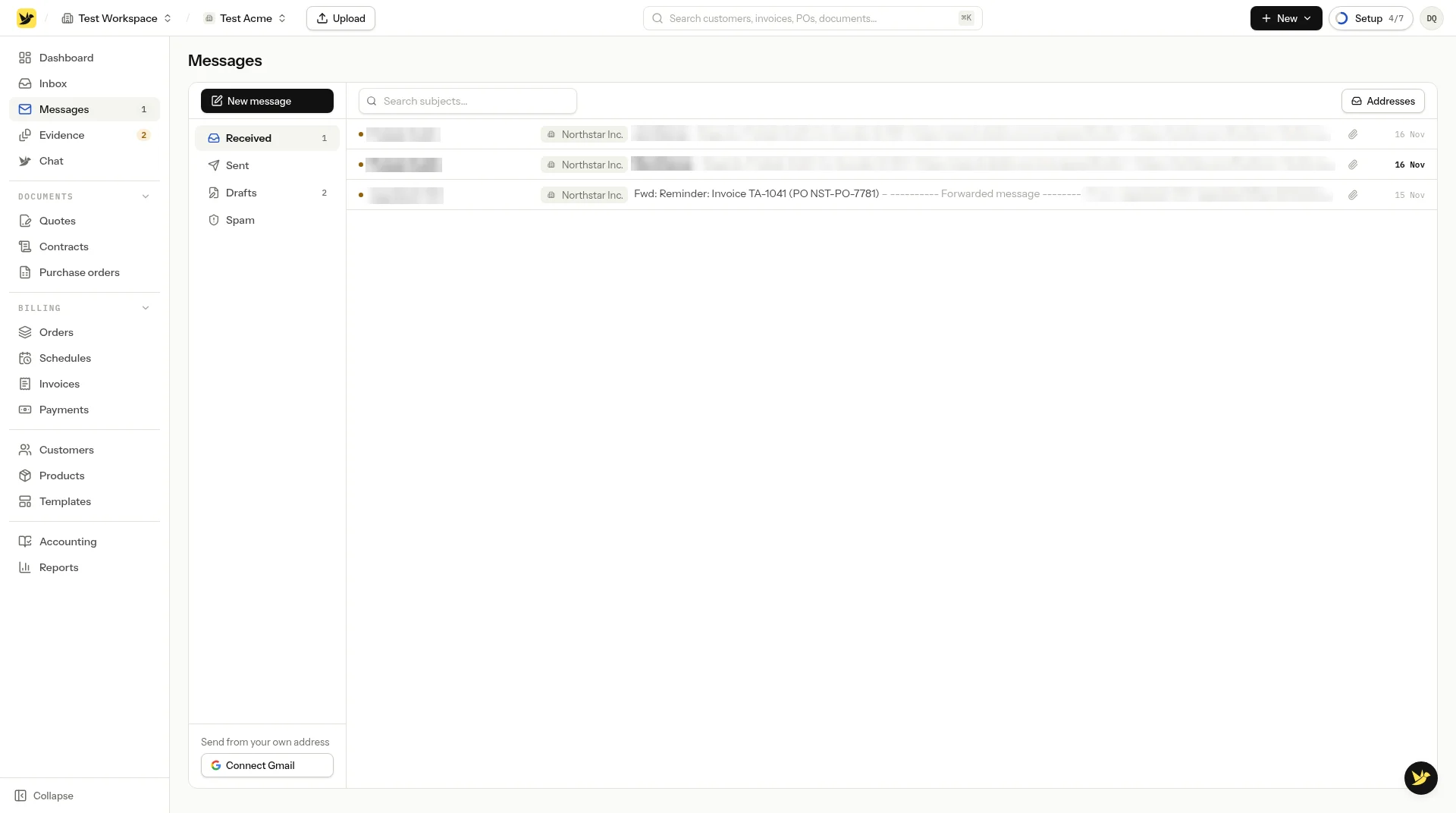
Read Customer Email
- Click Messages in the sidebar.
- Click Received. Use Search subjects to find a message.
- Click a message to open it.
Reply to a Customer
- Open the message.
- Reply in the thread, or ask duebird to draft the reply for you.
- Check the reply. It stays a draft until you click Send.
The conversation stays linked to the customer, so it is there the next time anyone opens the account.
Start a New Email
Click New message at the top of the folder list.
See Your Receiving Addresses
Click Addresses at the top right of Messages to see your receiving addresses.
Choose Which Address Your Email Comes From
Settings > Email > Sending explains it: with a verified sending domain, mail "leaves as your own address; until then it leaves as duebird's, named after you". To send from your own mailbox, click Connect Gmail at the bottom of Messages ("Send from your own address"), or connect Gmail or Outlook under Your settings > Connected accounts.
Tips
- Check Drafts each day. duebird leaves reminder drafts there, and "Nothing is sent: you read each one and send it yourself."
- Remittances that arrive by email are also read by duebird. Check Evidence to see what each one changed.
Frequently Asked Questions
Does duebird send replies for me?
No. A reply stays a draft until you click Send.
Where do reminder drafts go?
To Drafts, for you to read and send.