
Send From Your Own Domain or Mailbox
Make invoice emails come from your own address instead of duebird's.
2 min readUpdated
Until you verify a sending domain, mail "leaves as duebird's, named after you." With a verified domain, it leaves as your own address.
Anyone on your team can also send as themselves by connecting their own Gmail or Outlook.
How It Works
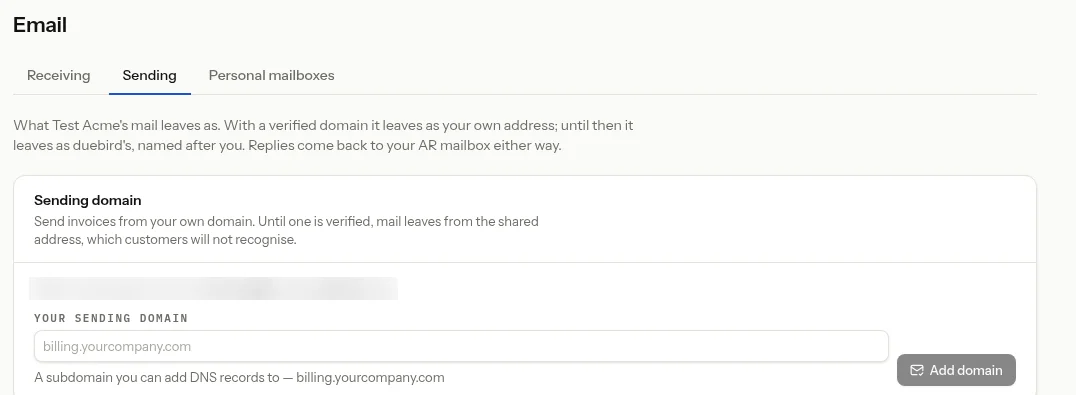
Settings > Email has three tabs: Receiving, Sending and Personal mailboxes.
Sending shows the address your mail goes out from now, and your organization's Sending domain: "Send invoices from your own domain. Until one is verified, mail leaves from the shared address, which customers will not recognise." You add a subdomain you can add DNS records to, such as billing.yourcompany.com.
"Replies come back to your AR mailbox either way."
Personal mailboxes: "Anybody may send as themselves: connect your own Gmail or Outlook under Your settings, Connected accounts, and new drafts leave from it, with replies coming back to the AR mailbox."
Add a Sending Domain
- Open your organization's settings and click Email, then Sending.
- Under YOUR SENDING DOMAIN, enter a subdomain, such as billing.yourcompany.com.
- Click Add domain.
- Add the DNS records duebird shows you, including DKIM and a verification record, at your DNS provider.
- Return to Sending and click Verify. This can take from a few minutes to an hour, and occasionally 24 to 48 hours.
Connect Your Own Mailbox
- Open Your settings, then Connected accounts.
- Connect your Gmail or Outlook.

Tips
- Use a subdomain, such as billing.yourcompany.com, for sending.
- Verify the domain before sending your first invoices so customers recognise the sender.
- Replies still reach your AR mailbox, whichever way you send.
Frequently Asked Questions
Where do replies go?
To your AR mailbox, either way.
What do customers see before I verify a domain?
Mail leaves as duebird's shared address, named after you.
How long does verification take?
Usually minutes to an hour. DNS changes can occasionally take 24 to 48 hours.
Can I send from my own Gmail?
Yes. Connect it under Your settings, Connected accounts.