
Invite People and Choose Roles
Invite teammates by email, choose which organizations they can reach, and give them a role.
1 min readUpdated
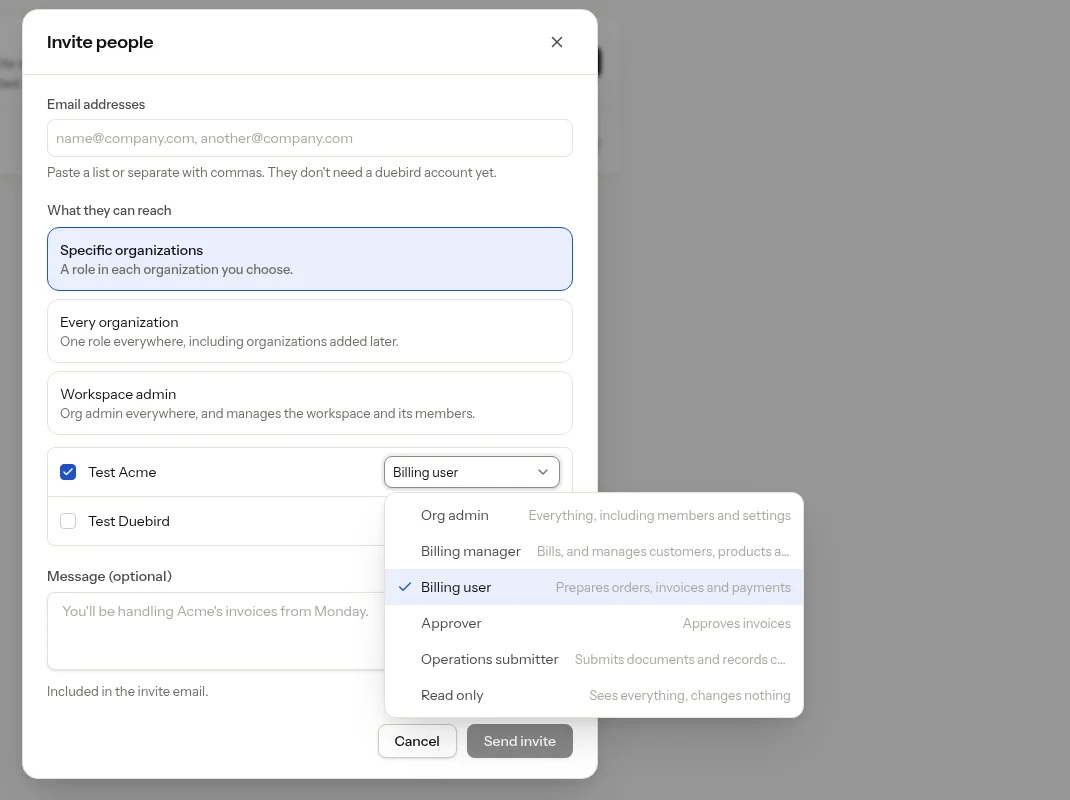
Invite people from Members. They "don't need a duebird account yet."
The invite sets what they can reach and their role in each organization.
How It Works
What they can reach has three choices:
- Specific organizations: "A role in each organization you choose."
- Every organization: "One role everywhere, including organizations added later."
- Workspace admin: "Org admin everywhere, and manages the workspace and its members."
The invite email has a secure sign-up link naming the workspace, who invited them and their role. The link is valid for 7 days.
Somebody invited from an organization's Members "joins the workspace with access to this organization only". Access granted at the workspace is shown there and changed on the workspace's Members.
Send an Invite
- Open your organization's settings and click Members, then Invite people.
- Enter one or more Email addresses. Paste a list or separate them with commas.
- Under What they can reach, choose Specific organizations, Every organization or Workspace admin.
- For each organization, choose a role.
- Add an optional Message. It is included in the invite email.
- Click Send invite.
Tips
- Invite several people at once by pasting a list of emails.
- Add a short message so people know why they are invited.
- Choose Every organization only for people who work across all entities.
- Resend an invite that has run out from Workspace settings > Members.
Frequently Asked Questions
Does the person need a duebird account first?
No. They don't need one yet.
Can I invite several people at once?
Yes. Paste a list or separate addresses with commas.
How long does an invite last?
7 days. Resend it from Workspace settings > Members if it runs out.
Can I change a role later?
Yes. Change it on Members. It applies at once.