
Workspaces and Organizations: Working With Multiple Entities
Run several legal entities in one workspace, each with its own customers, tax and numbering.
2 min readUpdated
A workspace holds one or more organizations. Each organization is a legal entity with its own settings, customers, tax and numbering.
"Invoices are issued by an organization, set up in its own settings."
How It Works
The switchers in the top bar move between workspaces and organizations.
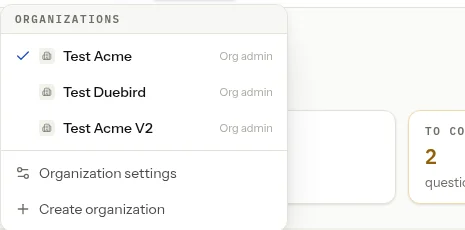
The organization switcher lists each organization with your role in it, plus Organization settings and + Create organization.
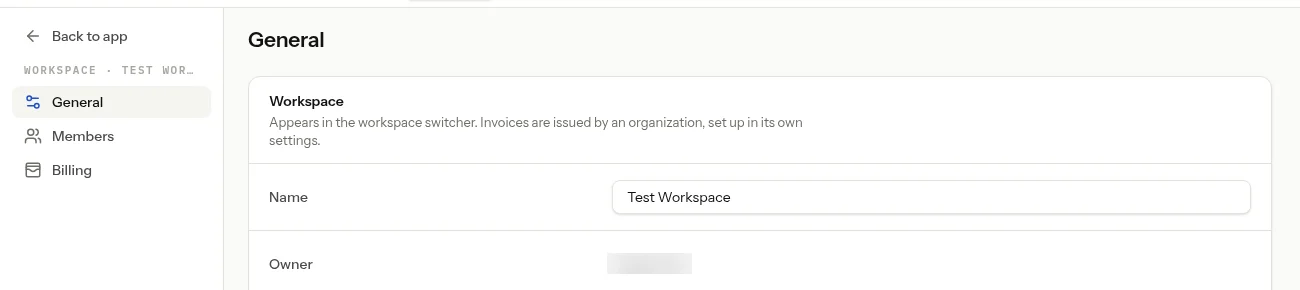
Workspace settings has three sections:
- General: the workspace name ("Appears in the workspace switcher"), the owner and when it was created.
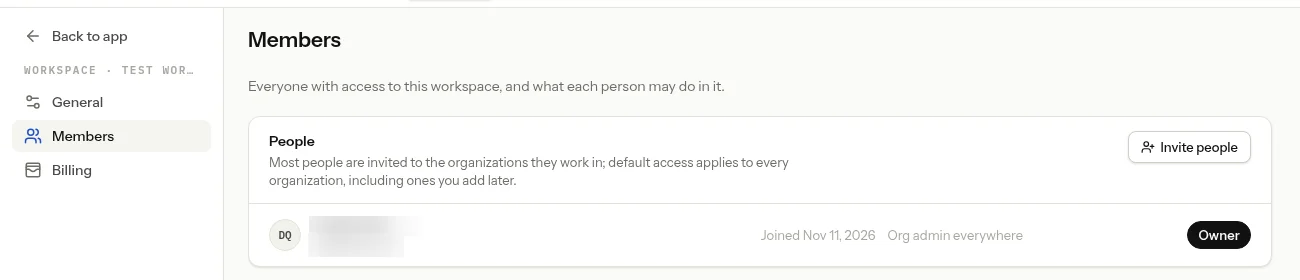
- Members: "Everyone with access to this workspace, and what each person may do in it." Default access here "applies to every organization, including ones you add later."
- Billing: your duebird plan, usage and invoices. See Your duebird Plan, Usage and Invoices.
Switch Organizations
- Click the organization name in the top bar.
- Choose another organization from the list.
Add an Organization
- Open the organization switcher.
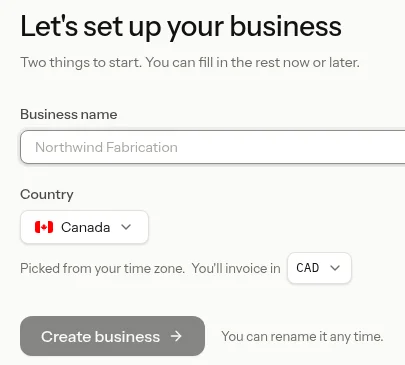
- Click + Create organization. "Let's set up your business" opens.
- Enter the Business name. "You can rename it any time."
- Choose the Country. duebird picks the invoicing currency from it, which you can change.
- Click Create business.
- Set up its business details, tax and numbering in its own settings.
Add a Workspace
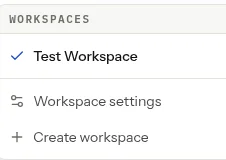
- Open the workspace switcher.
- Click + Create workspace.
Review Workspace Settings
- Open the workspace settings.
- Check General for the workspace name and owner.
- Check Members for everyone with workspace-wide access.
Tips
- Create a separate organization for each legal entity that issues its own invoices.
- Check which organization is selected before creating a document.
- Give workspace-wide access only to people who work across every entity.
Frequently Asked Questions
Do organizations share customers or products?
No. Customers, products, units, tax categories and price lists belong to one organization.
Which organization issues an invoice?
The one it is created in. Check the switcher first.
Where do I give someone access to every organization?
In workspace Members, or by choosing Every organization when you invite them.