
Answer duebird's Questions: The Waiting on Your Answers Review
When duebird stops to ask, here is how to find its questions, check each proposal and save your answers.
2 min readUpdated
When duebird reaches something it cannot settle, it stops and asks before going on. The item shows as "waiting on your answers".
You accept or decline each proposal, and "nothing changes until you save".
How It Works
Any of these takes you to what is waiting:
- Dashboard > To confirm: "questions duebird is holding for you".
- Dashboard > FROM DUEBIRD: the item with an Answer button.
- The bird button: a badge, for example "1 conversation waiting on you".
- Chat: conversations with something to confirm show Review.
Answer duebird's Questions
- Click Answer. The conversation opens and shows what duebird read and did.
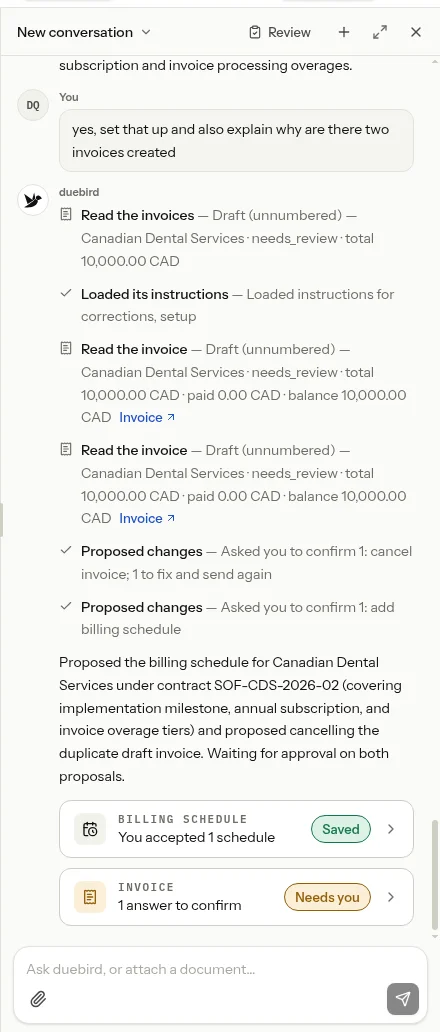
- Click the card that says Needs you, for example INVOICE · 1 answer to confirm. The review pane opens.
- Check the steps across the top, for example Catalog, Contract & prices, Billing schedule and Request. Click Source to see the original document.
- Under NEEDS YOU, read each proposal ("duebird is asking for 3 things"). Tick the ones you accept, and decline the ones you do not want. Items you already accepted show Accepted.
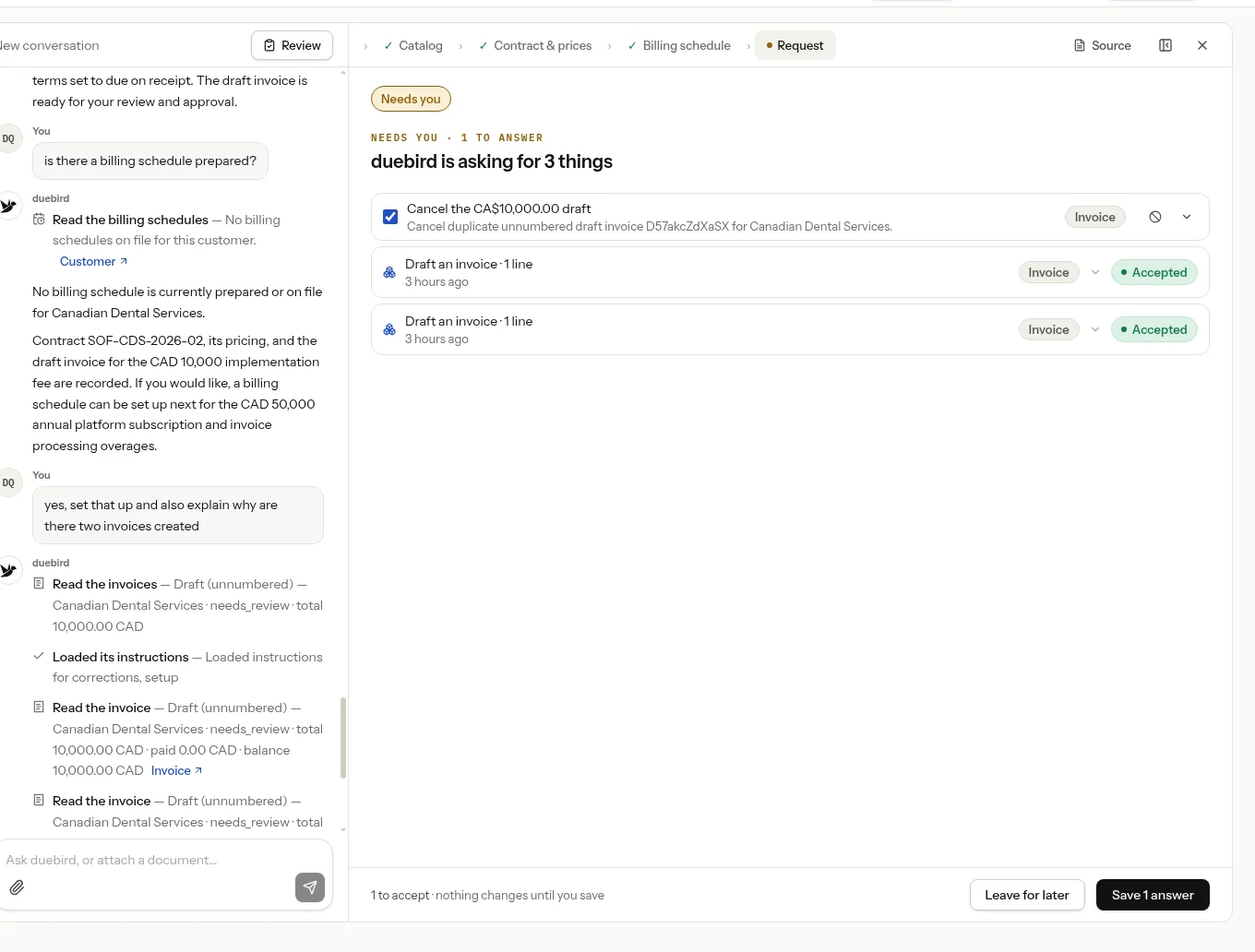
- Check the footer, for example "1 to accept · nothing changes until you save".
- Click Save to apply your answers (the button shows the count, for example Save 1 answer), or Leave for later.
After you save, duebird carries on. Cards in the conversation show what was saved, for example "You accepted 1 schedule" marked Saved. In Evidence, the document's WHAT DUEBIRD DID section counts the questions you answered.
Use the Keyboard
- Next or previous row: J or K
- Tick or untick a row: Space or A
- Reject a row, or undo the rejection: R
- Save the checkpoint (save this step and move on): ⌘↵ (Ctrl+Enter on Windows and Linux)
Decline or Leave It for Later
- Declined: duebird will not propose the same change again. If the rest of the work does not depend on it, duebird skips it and carries on. If it does, for example when the customer is in doubt, the run stops.
- Leave for later: nothing is written. The questions stay waiting, counted on the Dashboard and on the Evidence card, and come back when you open the document again.
Tips
- Not sure? Ask duebird in the same conversation before you save, for example "explain why there are two invoices".
- Check Source before accepting anything that changes prices, invoices or schedules.
Frequently Asked Questions
Does anything change before I save?
No. "nothing changes until you save".
What happens if I decline a proposal?
duebird will not propose the same change again. It skips it and carries on, unless the rest of the work depends on it, in which case the run stops.
Where do questions I left for later go?
They stay waiting, counted on the Dashboard and on the Evidence card, and come back when you open the document again.