
Keyboard Shortcuts for Answering duebird Faster
Every keyboard shortcut in Duebird, including the keys for working through duebird's questions.
1 min readUpdated
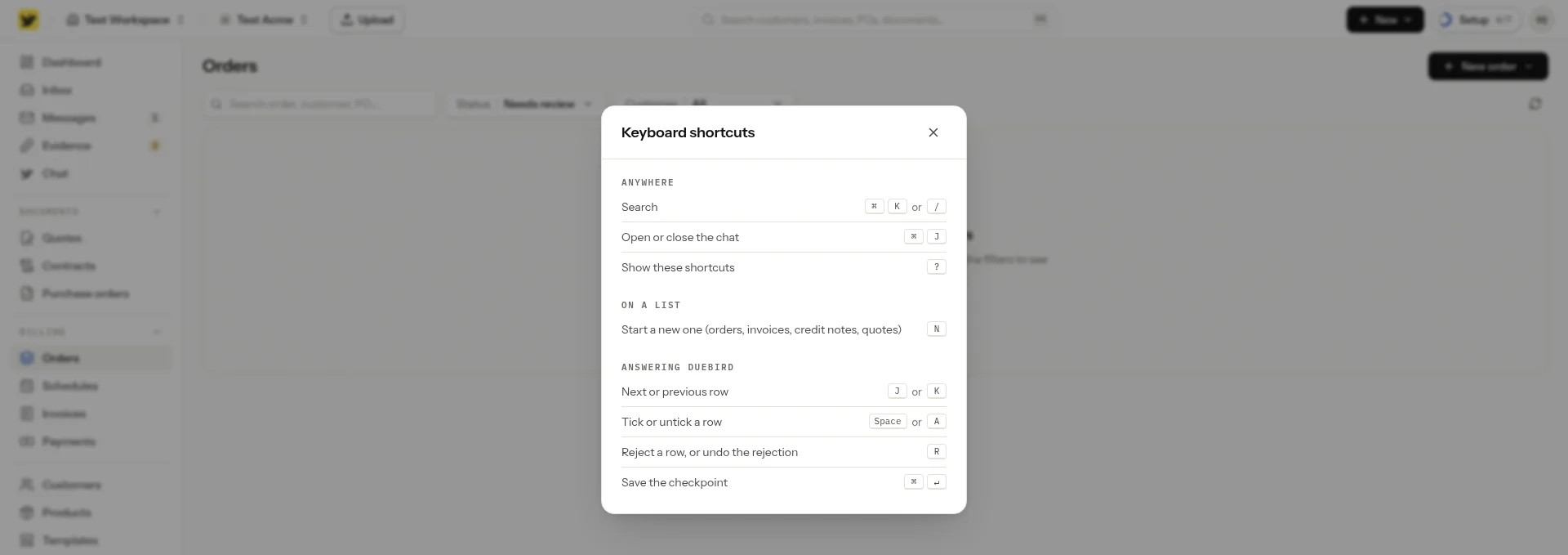
Press ? anywhere in Duebird to see the shortcuts list. You can also open it from the avatar menu, Keyboard shortcuts.
The list shows Mac keys. On Windows and Linux, use Ctrl wherever you see ⌘.
How It Works
Shortcuts are grouped by where they work: anywhere, on a list, and while answering duebird.
Use Shortcuts Anywhere
- Search: ⌘K or / (Ctrl+K or / on Windows and Linux).
- Open or close the chat: ⌘J (Ctrl+J).
- Show these shortcuts: ?
Use Shortcuts on a List
- Start a new one (orders, invoices, credit notes, quotes): N
Use Shortcuts While Answering duebird
Use these in the review pane, when duebird is asking you to confirm its proposals. Save the checkpoint saves all your answers for the current step and moves on to the next one.
- Next or previous row: J or K
- Tick or untick a row: Space or A
- Reject a row, or undo the rejection: R
- Save the checkpoint: ⌘↵ (Ctrl+Enter)
Tips
- Work through a long review without the mouse: J to move, Space to tick, R to reject, then ⌘↵ (Ctrl+Enter) to save.
- Press / to jump to Search from any page.
Frequently Asked Questions
Do the shortcuts work on Windows?
Yes. Use Ctrl wherever the list shows ⌘, for example Ctrl+K for search and Ctrl+J for the chat.
What does Save the checkpoint do?
It saves all your answers for the current step of a review and moves on to the next one.