
How Billing Schedules Prepare Invoices
When a schedule prepares each invoice, how to make one early, and where the invoices it made are kept.
2 min readUpdated
Schedules prepare invoices "Automatically, 7 days ahead" by default.
Each billing date first becomes a billing order. Its ready lines are then drafted into an invoice, which goes through the usual approval.
How It Works
A schedule's SETTINGS say when it bills:
- Prepared: for example "Automatically, 7 days ahead".
- Invoices: follows the customer's setting unless you change it.
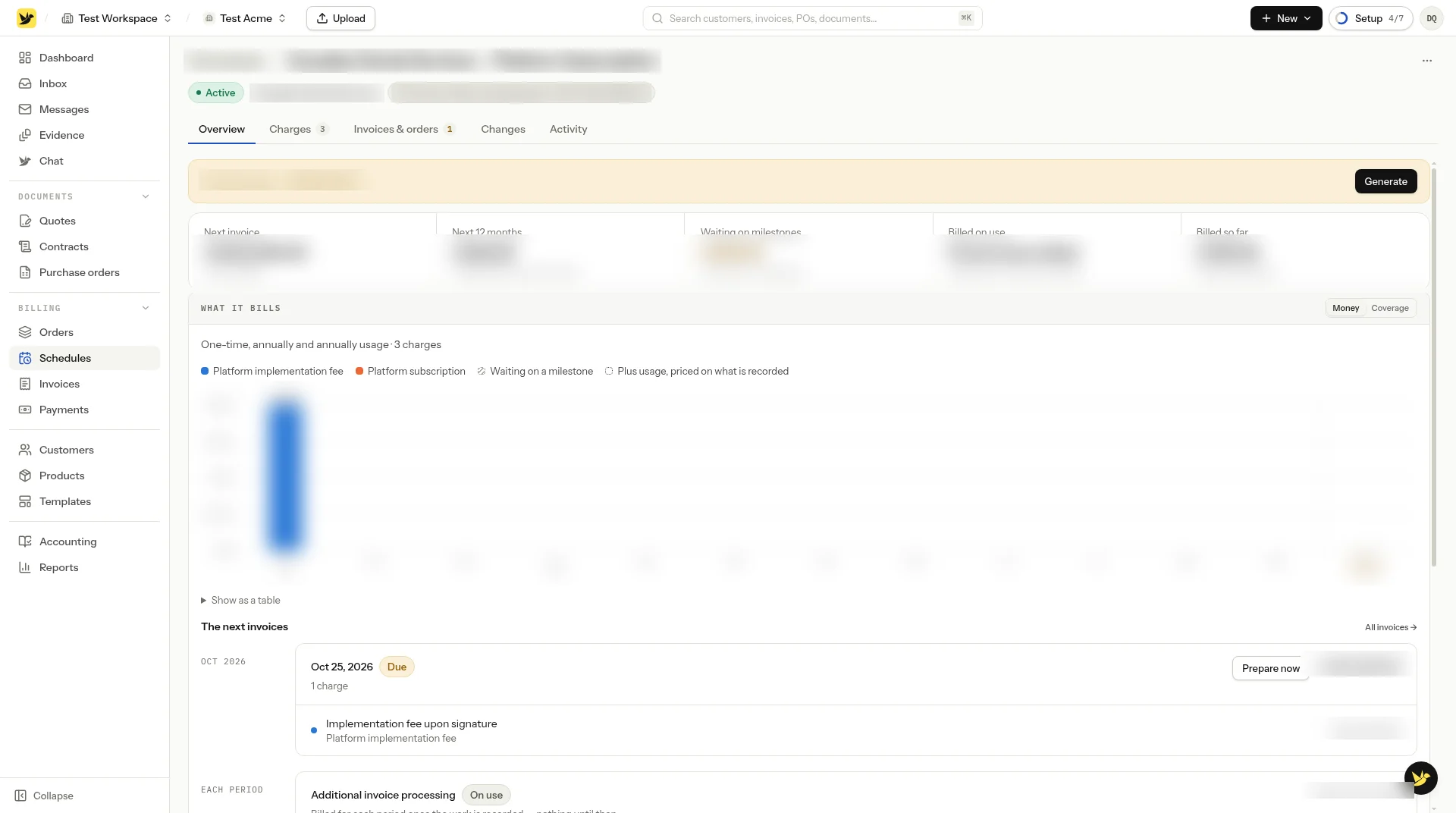
When an invoice is due, a banner on the schedule shows how many are due, with Generate.
The invoices a schedule makes follow the same approval and payment steps as any other invoice. See Invoice Statuses Explained.
See What Is Coming Up
- Click Schedules in the sidebar. The Next invoice column shows the date and amount of each schedule's next invoice.
- Open a schedule. On Overview, read Next invoice, Next 12 months, Billed on use, Billed so far and Waiting on milestones.
- Under The next invoices, each upcoming invoice shows its period, amount, date and status, for example Due.
Make a Due Invoice
- When an invoice is due, the schedule shows a banner, for example "1 invoice is due".
- Click Generate.
- Find the draft under Invoices, in Needs review. Check it and approve it as usual.
Prepare an Invoice Early
- Under The next invoices, find the invoice.
- Click Prepare now.
Find the Orders and Invoices a Schedule Made
Click the Invoices & orders tab. It lists the orders and invoices the schedule has made.
Tips
- Check Next invoice on the Schedules list each week to see what is about to bill.
- Use Prepare now when a customer wants an invoice before its usual date.
- Read the Changes tab to see how the schedule was set up and changed.
Frequently Asked Questions
How early are invoices prepared?
By default, "Automatically, 7 days ahead".
Does a schedule send invoices on its own?
No. It prepares a draft. A person approves it, and sending is a separate step.
Why does a schedule make an order first?
Each billing date becomes an order, so its lines are tracked like any other billing work before they are invoiced.