
Create a Blank Order or Schedule by Hand
Start an order or a billing schedule without a purchase order or contract behind it.
2 min readUpdated
Most orders come from a purchase order and most schedules from a contract. When there is neither, start one by hand.
A blank order needs a customer. A new schedule bills nothing until you start it: "A draft bills nothing."
How It Works
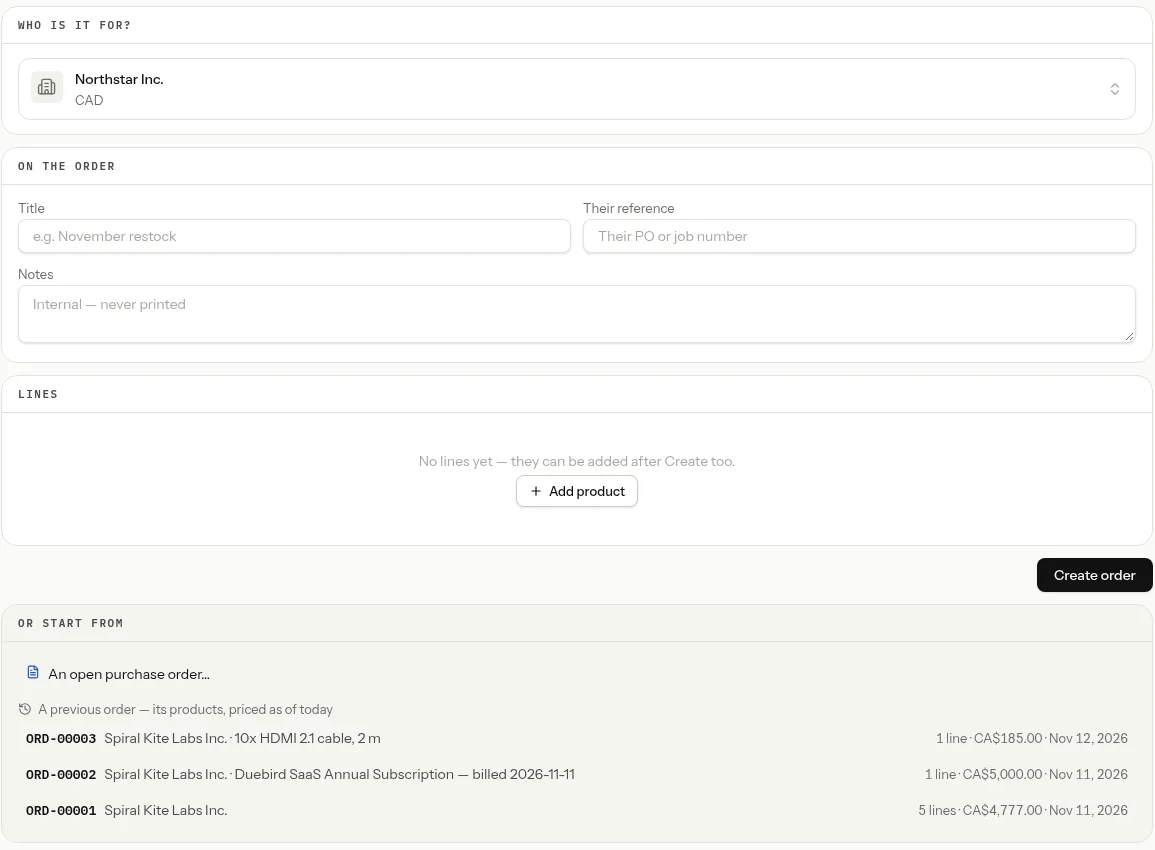
A blank order has three parts:
- WHO IS IT FOR?: the customer. "Every line on an order is one customer's billing work."
- ON THE ORDER: a Title, such as "November restock", Their reference (their PO or job number), and Notes, which are internal and never printed.
- LINES: "No lines yet: they can be added after Create too", with Add product.
OR START FROM offers a shortcut: an open purchase order, or a previous order, with its products priced as of today.
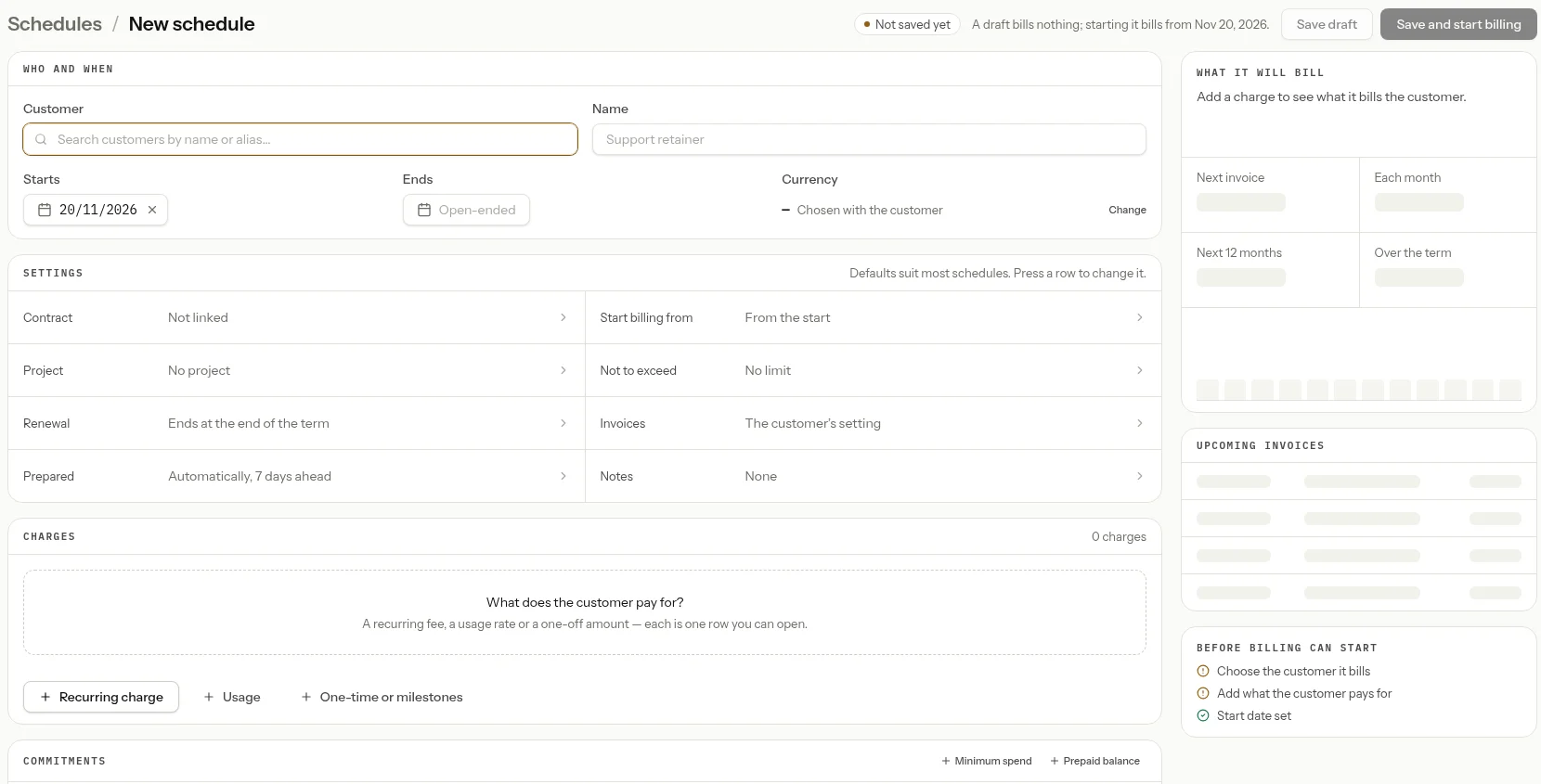
A new schedule asks for the customer first, then has WHO AND WHEN, SETTINGS, CHARGES and COMMITMENTS, like a schedule made from a contract.
Create a Blank Order
- Click Orders, then + New order > Blank order.
- Under WHO IS IT FOR?, choose the customer, or New customer....
- Add a Title and Their reference if you have one.
- Add lines with Add product, or add them after you create the order.
- Click Create order.
Create a Schedule by Hand
- Click Schedules, then + New schedule.
- Search for the customer by name or alias.
- Under WHO AND WHEN, set the Name, Starts, Ends (or leave it open-ended) and check the Currency.
- Under SETTINGS, change any row you need, such as Prepared or Not to exceed.
- Under CHARGES, add a Recurring charge, Usage, or One-time or milestones. See Usage and Milestone Charges on a Schedule.
- Click Save draft, or Save and start billing.
Tips
- Use Their reference so the customer's PO or job number prints on the invoice.
- Start from a previous order to repeat a regular order quickly.
- Save a schedule as a draft until the customer confirms. A draft bills nothing.
Frequently Asked Questions
Can I add lines after creating an order?
Yes. Lines can be added after Create order.
Are order notes printed?
No. Notes are internal and never printed.
When does a new schedule start billing?
When you click Save and start billing. It bills from the start date.