
Create a Billing Order From a Purchase Order
Bring a customer's purchase order lines across into a billing order, ready to deliver and bill.
2 min readUpdated
An order is "What you will bill". It sits between what the customer asked for and the invoice, and tracks what has been delivered and invoiced.
From a purchase order brings the PO's lines across, so nobody types them in again.
How It Works
New order on the Orders list offers two ways to start:
- Blank order: "Opens a new order to fill in".
- From a purchase order: "Bring the PO's lines across".
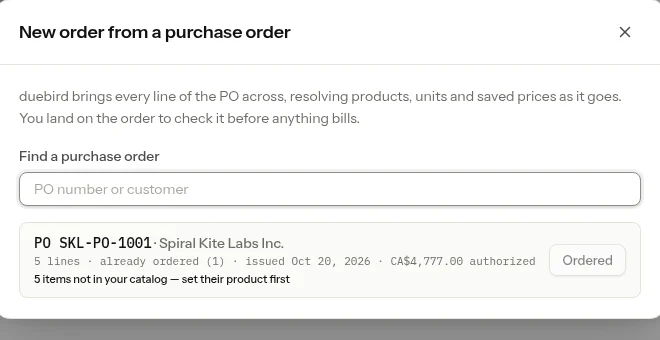
"duebird brings every line of the PO across, resolving products, units and saved prices as it goes. You land on the order to check it before anything bills."
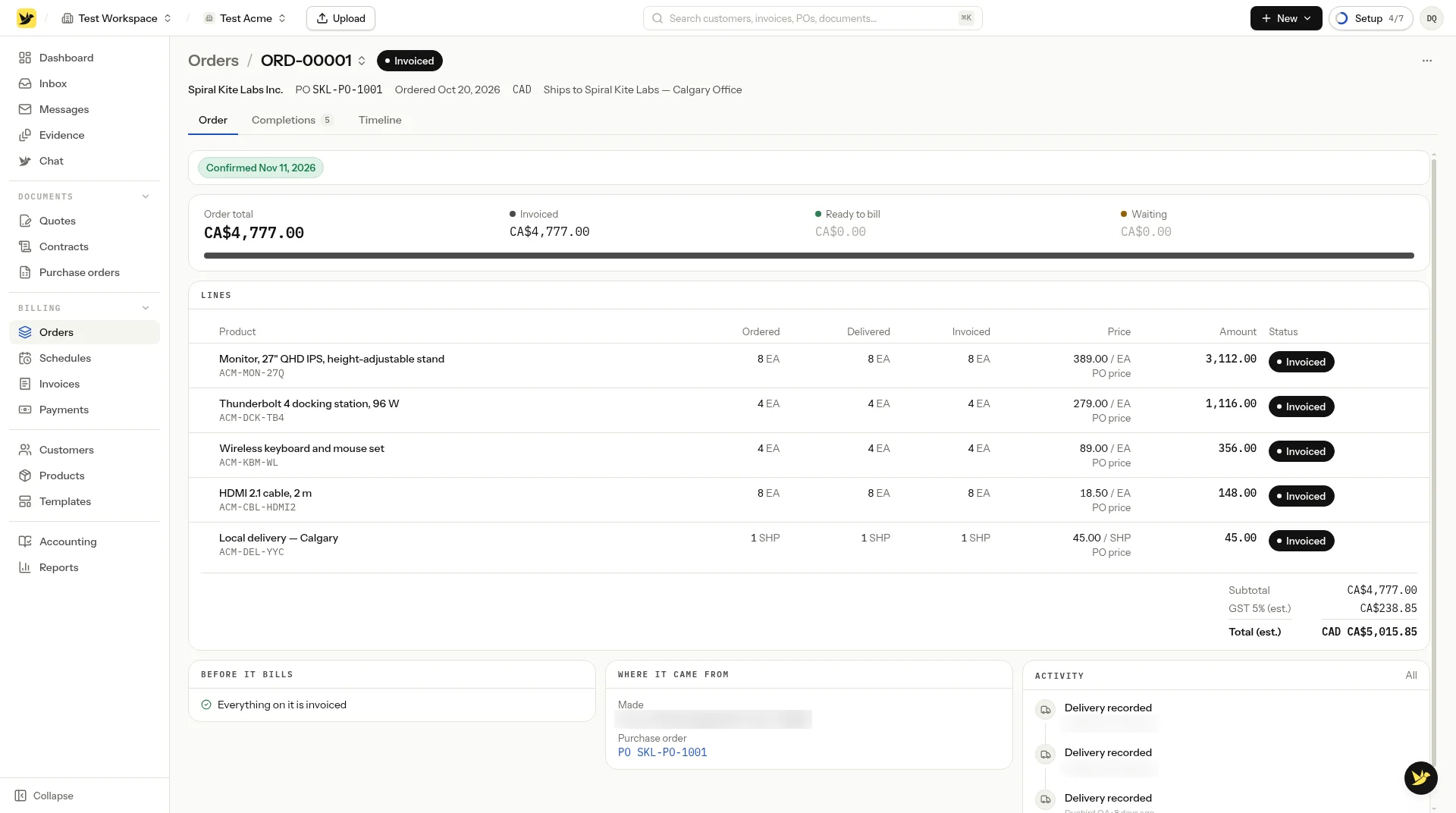
An order made from a PO keeps the link. WHERE IT CAME FROM on the order names the purchase order and who made the order. Each line shows the price it came with, for example PO price.
Start the Order
- Click Orders in the sidebar, then + New order. You can also choose + New > Order.
- Choose From a purchase order.

Pick the Purchase Order
- Under Find a purchase order, search by PO number or customer.
- Each PO shows its line count, how much is already ordered, when it was issued and the amount authorized.
- If a PO says some items are "not in your catalog", set their product first. See Why Invoices Wait on Products and Tax Categories.
- Choose the PO. duebird opens the new order for you to check.
Check the Order
- The header shows the status, the customer, the PO number, when it was ordered, the currency and where it ships.
- Under LINES, check each product, the quantity ordered and the price.
- Under WHERE IT CAME FROM, open the purchase order to compare it with what the customer sent.
Find Orders
The Orders list shows Order, Customer, Description, PO, Ordered, Bills on, Lines, Total, Est. tax, Incl. tax, Ccy, Billed and Status. Search by order, customer or PO, or filter by Status and Customer.
Order statuses include Needs review, In progress, Ready to bill, Invoiced, On hold and Cancelled.
Tips
- Resolve every PO line to a product first. Lines without one hold up the order.
- Use the PO column to find the order for a customer's PO number.
- Open WHERE IT CAME FROM when a customer questions a quantity or price.
Frequently Asked Questions
Do I have to retype the PO lines?
No. From a purchase order brings every line across.
Can I start an order without a PO?
Yes. Choose Blank order. See Create a Blank Order or Schedule by Hand.
Where do I see which PO an order came from?
In the PO column on the list, and under WHERE IT CAME FROM on the order.