
Write a Contract and Add Signers
Start a contract, write it in Duebird's document editor, name who signs it and place the fields each signer fills in.
3 min readUpdated
Contracts in Duebird are "Written here, signed online". You write them in a full document editor that saves as you go.
The Signers panel names who signs and holds their fields: the ones a signer fills in, such as a signature, and the ones duebird fills in, such as the date signed. "Emails are asked for when you send it."
How It Works
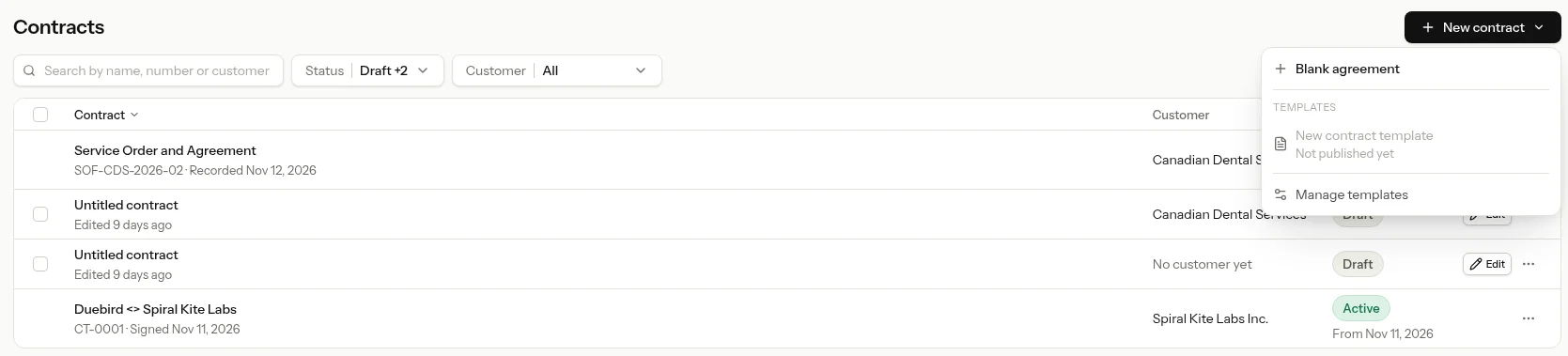
The Contracts list shows each contract with its customer and status. Search "by name, number or customer", or filter by Customer and Status: Draft, Awaiting signature, Active, Ended, Terminated and Withdrawn. A draft has an Edit button on its row.
The New contract button opens a menu:
- Blank agreement: start without a template.
- TEMPLATES: your contract templates. One that is not published is greyed out, "Not published yet".
- Manage templates.
You can also choose + New > Contract, or New contract on a customer's Agreements.
Open the Editor
- Click New contract and choose Blank agreement or a published template. To carry on with a draft, click Edit on its row.
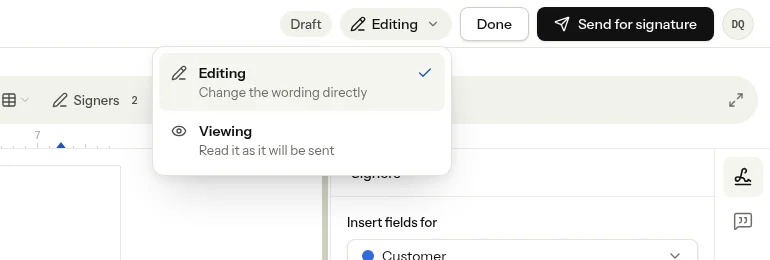
- The header shows the contract name, Saved (or Saving...), the Draft pill, the Editing menu, Done and Send for signature.
- Use the Editing menu to switch between Editing, "Change the wording directly", and Viewing, "Read it as it will be sent".
Write the Contract
- Use the menu bar (File, Edit, View, Insert, Format, Tools) and the toolbar for text styles, fonts, lists, tables and images.
- Use the Outline on the left to move between sections, for example Agreement and Signatures. For more room, use Hide the outline (Cmd+Opt+O) or Focus mode (Cmd+Shift+F).
- On an empty line, press space to ask duebird for wording, or type / for blocks.
Name the Signers
- Click Signers in the toolbar, or the signers icon on the right edge.
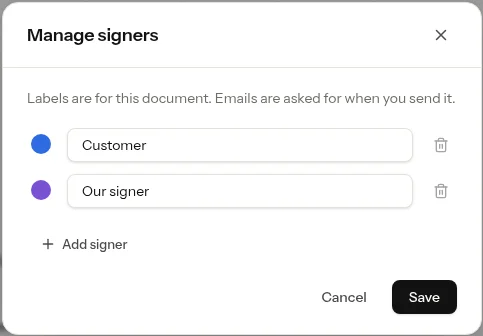
- Open Insert fields for and choose Manage signers.
- Rename a signer, click + Add signer to add one, or click the bin icon to remove one. Then click Save.
Place Signer Fields
- Under Insert fields for, choose the signer, for example Customer or Our signer.
- Choose from Fillable fields (Signature, Initials, Name, Text field) or Auto-filled fields (Date signed).
- Drag the field onto the page, or click it to place it at the cursor.
- Check On the page, which lists the fields already placed for that signer.
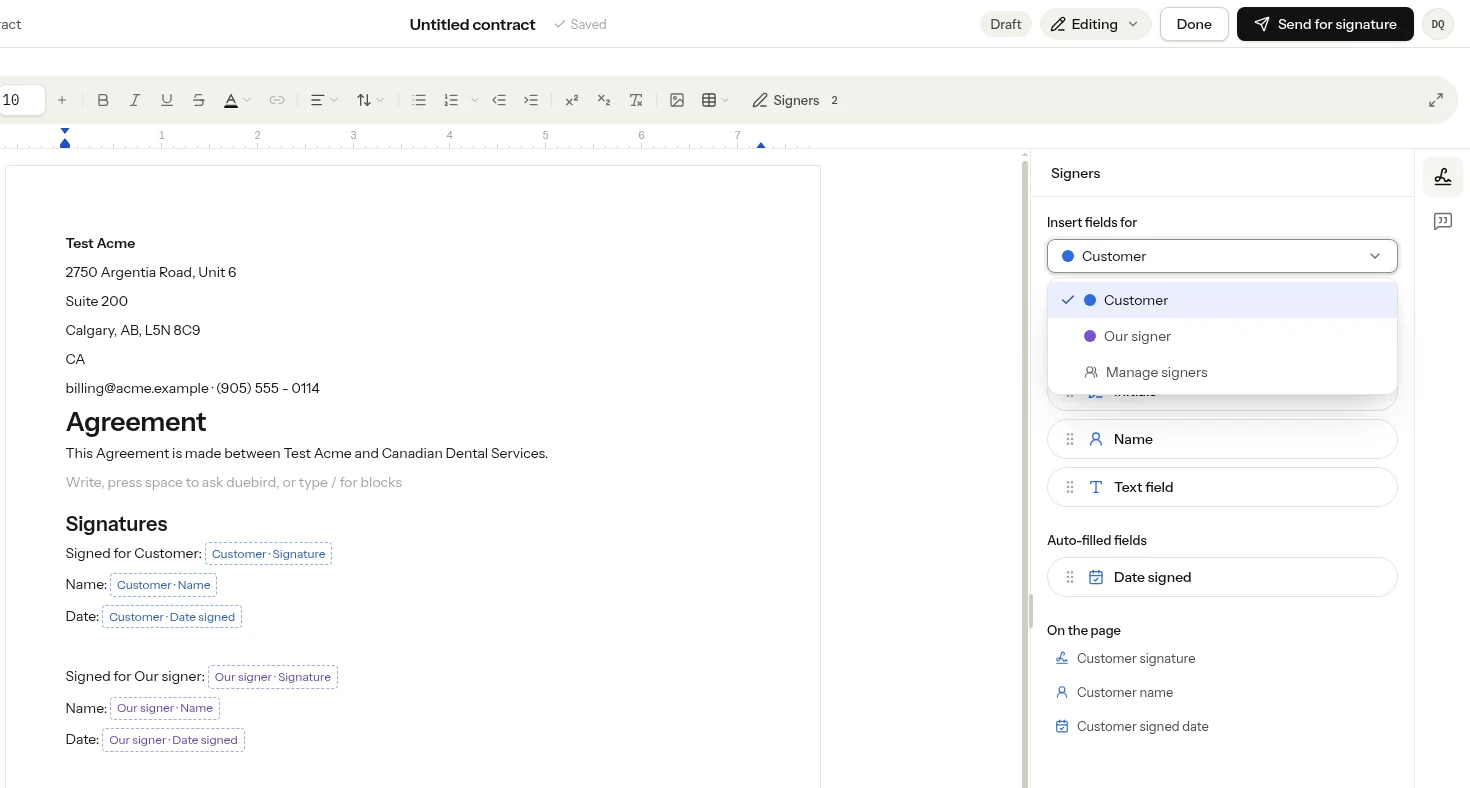
Signature blocks from a template already hold fields for each signer, such as Signature, Name and Date signed.
Tips
- The editor saves as you go. Watch for Saved in the header.
- Switch to Viewing to read the contract as the signers will see it.
- Signer names are labels for this document only. You add each signer's email when you send it.
Frequently Asked Questions
Do I need to save my contract?
No. The editor saves as you go and shows Saved in the header.
Where do I enter a signer's email?
When you send the contract. See Send a Contract for E-Signature.
What is the difference between fillable and auto-filled fields?
A signer fills in fillable fields, such as their signature or name. duebird fills in auto-filled fields, such as the date signed.