
From Signed Contract to Billing: Rules, Prices and Schedule
How a signed contract sets up payment terms, billing cycle, customer prices and a billing schedule without re-keying.
3 min readUpdated
Once a contract is signed in Duebird, it is brought into billing. The contract shows an In billing pill next to its number.
What it set up sits on the contract's Details tab: rules such as payment terms and billing cycle, customer prices, and a link to its billing schedule.
How It Works
A signed contract sets up three things:
- Rules: how duebird bills this customer, for example Net 30 and Billed yearly. Each is marked "Sets a value", with Retire.
- Prices: customer prices with SKU, price, unit, effective date and status.
- Schedules: the billing schedule, which you set up with Create schedule from this contract.
Under DOCUMENTS, the contract shows "Original agreement · Signed · Signed in duebird".
Check What the Contract Set Up
- Click Contracts in the sidebar and open the signed contract.
- On the Details tab, check With, In force, Renewal, Signed by and Rules, for example "2 rules · under Billing".
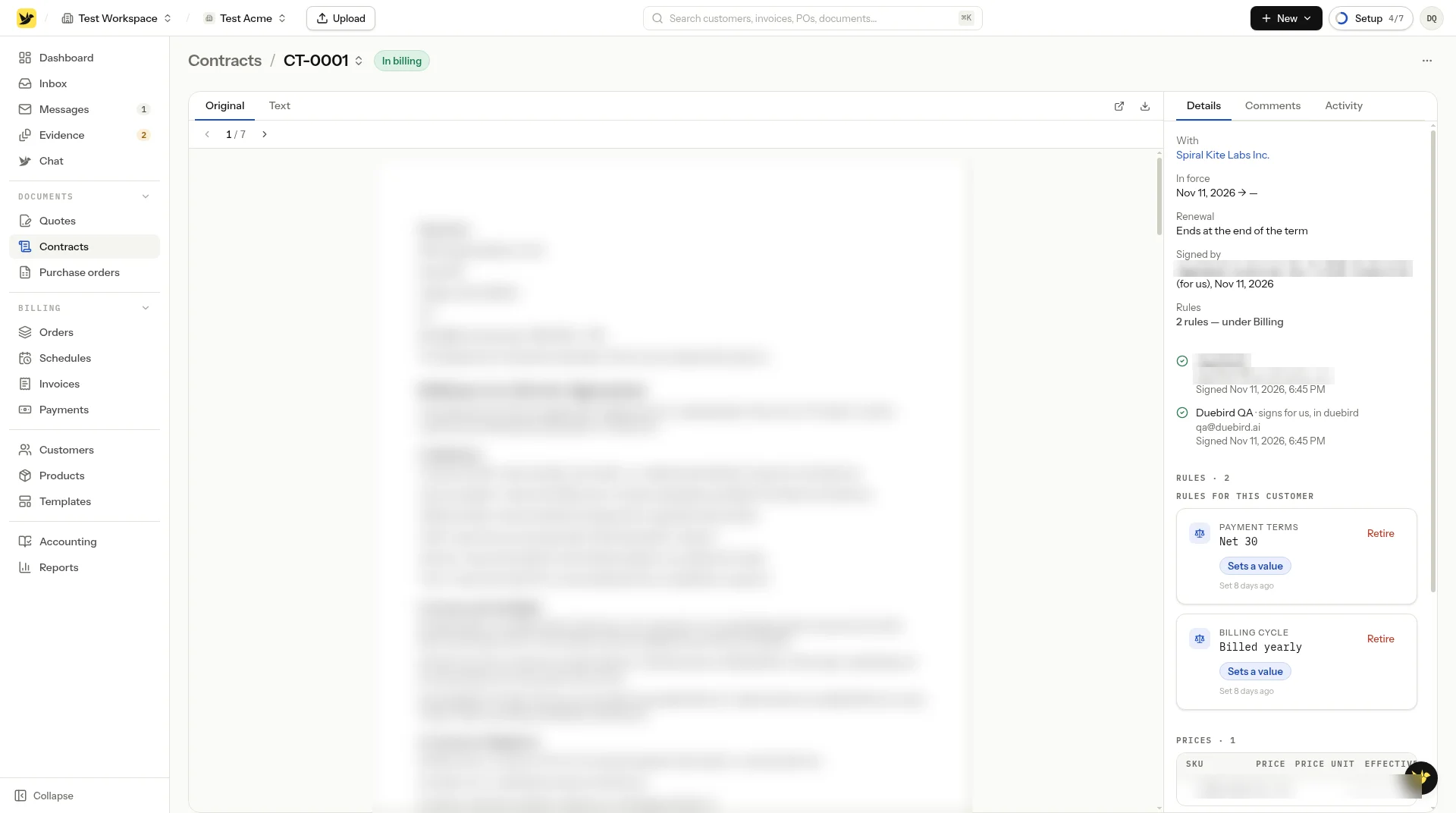
- Under RULES FOR THIS CUSTOMER, check each rule and its value.
- Under PRICES, check each price and when it takes effect.
Create the Billing Schedule
- Under SCHEDULES on the contract, click Create schedule from this contract.
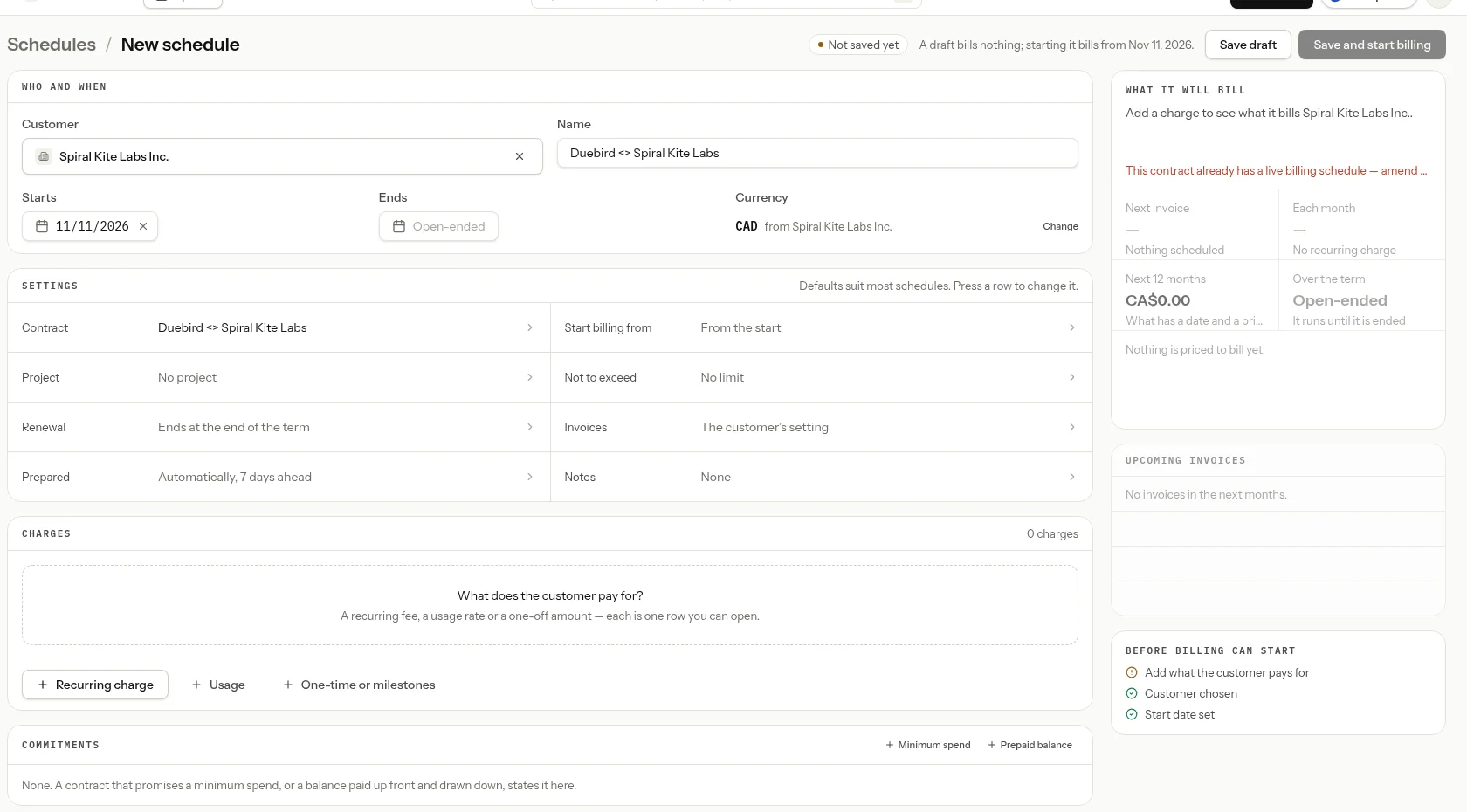
- A New schedule form opens, filled in from the contract and marked "Not saved yet". If the contract already has a live billing schedule, the form warns you and suggests you amend that one instead.
- Check WHO AND WHEN (customer, name, start, end and currency) and SETTINGS, where Contract links back to the contract.
- Under CHARGES, add what the customer pays for: Recurring charge, Usage, or One-time or milestones. Under COMMITMENTS, add a Minimum spend or Prepaid balance if the contract promises one.
- Check WHAT IT WILL BILL, UPCOMING INVOICES and BEFORE BILLING CAN START.
- Click Save draft, or Save and start billing. "A draft bills nothing."
Check a Running Schedule
- Open the schedule. Its header links to the customer and the contract.
- On Overview, check the totals: Next invoice, Next 12 months, Waiting on milestones, Billed on use and Billed so far.
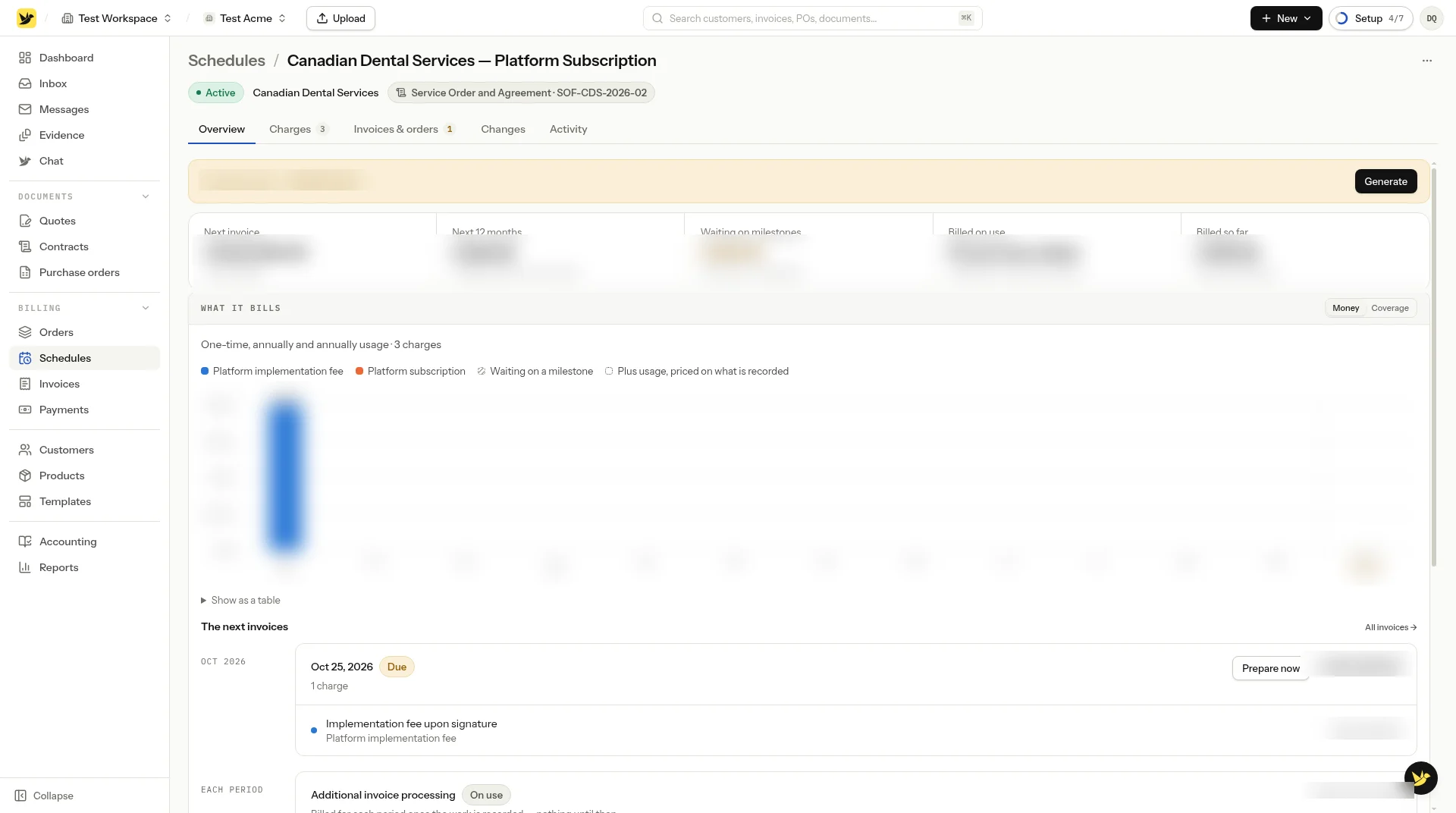
- WHAT IT BILLS shows each charge, by Money or Coverage, or as a table.
- Under the next invoices, use Prepare now to prepare one early. When an invoice is due, a banner offers Generate.
Invoices are prepared "Automatically, 7 days ahead". The schedule's tabs also hold Charges, Invoices & orders, Changes and Activity.
Find the Contract Actions
Click the ⋯ menu at the top right of the contract. It offers Change this contract..., End contract..., Terminate... and Read it into billing again.
- Change this contract... writes a change both parties sign. Nothing about the contract changes until they have.
- End contract... sets the date it ends.
- Terminate... sets the last day of service. Every schedule the contract governs ends on that date.
See Change, End or Terminate a Contract.
Tips
- Retire stops a rule or price from applying from now on. Nothing already billed changes.
- Use Comments on the contract to ask a colleague about a term. Type @ to name them.
- Check the Changes tab on the schedule for a plain-language record of how it was set up.
Frequently Asked Questions
Do I need to type the payment terms in again?
No. The signed contract sets the rules, such as payment terms and billing cycle, for that customer.
Does creating the schedule start billing straight away?
Only if you click Save and start billing. Save draft keeps it as a draft, and a draft bills nothing.
When are invoices from the schedule prepared?
Automatically, 7 days ahead. Use Prepare now to prepare one early.
What happens if I retire a rule?
It stops applying from now on. Nothing already billed changes.