
Read the Signing Record
Every contract signed in Duebird keeps a full audit trail, from the signature request to the sealed copy.
2 min readUpdated
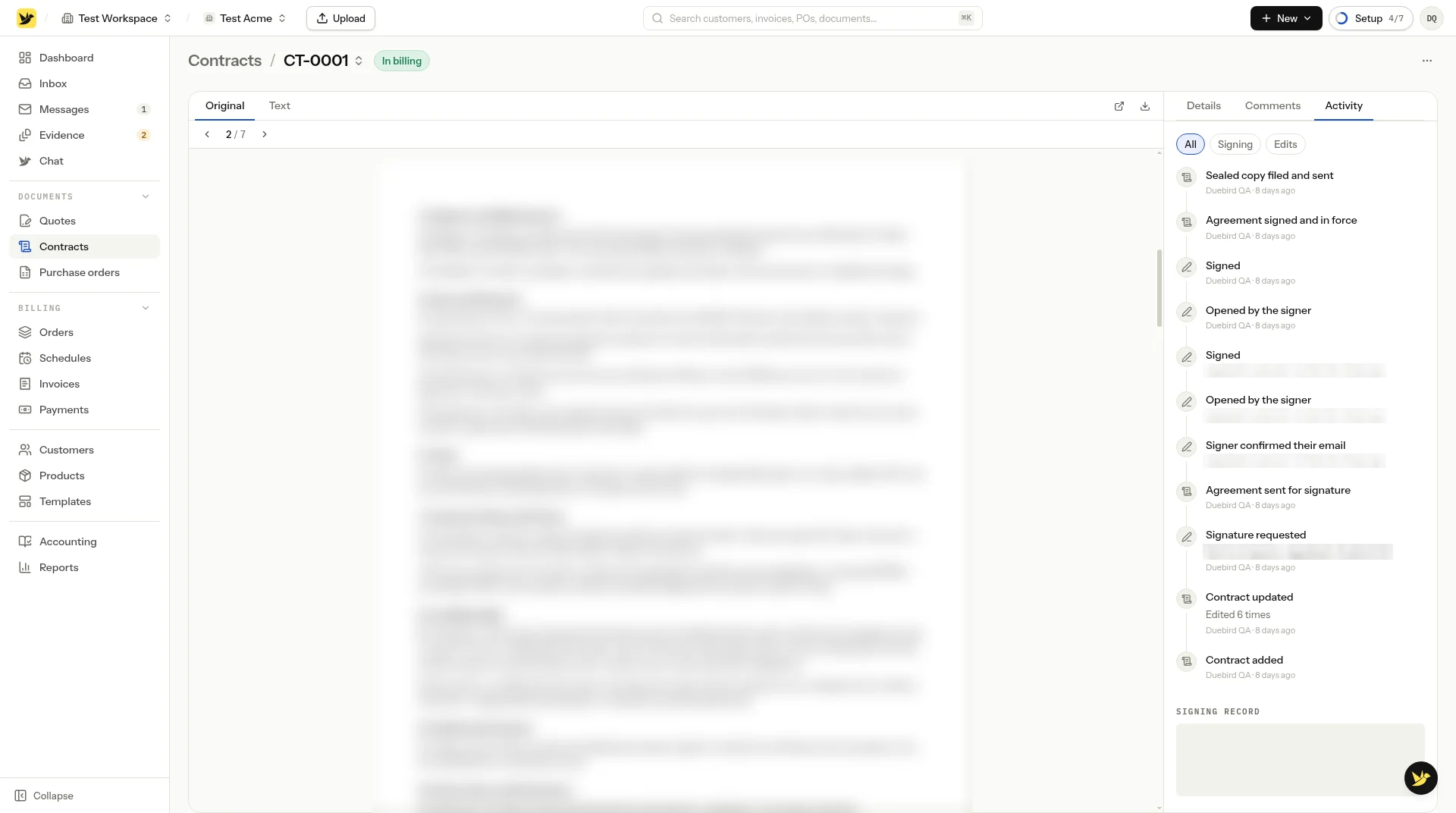
The SIGNING RECORD lists each signing step for a contract, in order, with who did it and when.
It ends with "Sealed copy filed and sent": the final signed agreement, filed and emailed to everybody.
How It Works
The signing record sits on the contract's Activity tab. Filter it with All, Signing or Edits. All also shows Contract added and Contract updated, for example "Edited 6 times".
A complete record reads, in order:
- Signature requested, for example "Sent to 2 signers", by the sender.
- Agreement sent for signature, by Duebird.
- Signer confirmed their email, by the customer's signer "on their link".
- Opened by the signer, by the customer's signer.
- Signed, by the customer's signer "on their link".
- Opened by the signer, then Signed, by your own signer.
- Agreement signed and in force, by Duebird.
- Sealed copy filed and sent, by Duebird.
Open the Signing Record
- Click Contracts in the sidebar and open the contract.
- On the right, click Activity.
- Click Signing to show only the signing steps.
Check Who Signed
- Click Details.
- Signed by lists each signer with their name, email and "Signed" with the date and time. Your own signer "signs for us, in duebird".
- Under DOCUMENTS, the agreement reads "Original agreement · Signed · Signed in duebird".
Tips
- Use the Edits filter to see changes made to the contract wording.
- Use Download or Open in a new tab above the document to keep or share a copy of the agreement.
- Add a comment on the Comments tab and type @ to name a colleague.
Frequently Asked Questions
Who gets the sealed copy?
Everybody on the contract. The record ends "Sealed copy filed and sent".
Does the customer confirm who they are?
The record shows "Signer confirmed their email" before the customer opens and signs.
Can I see edits made before signing?
Yes. Choose the Edits filter on the Activity tab.