
Publish a Contract Template and See Where It Is Used
Make a template available to new contracts, and check which contracts start from it.
2 min readUpdated
A template stays a draft until you click Publish v1. Until then the header reads "Not published · no contract can use it yet".
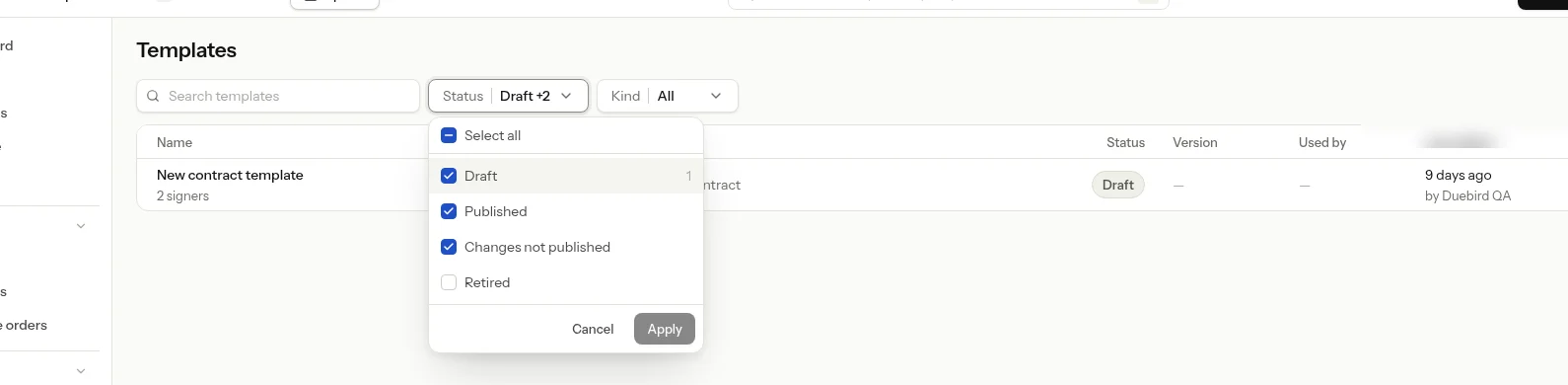
The Templates list shows each template's Version and Used by, the contracts that start from it.
How It Works
Publishing makes a template version available to contracts and marks it Published. The first version is v1. A published version is not edited in place: you edit the draft, and publishing again makes the next version. Contracts already made from a template keep the version they started from.
The Status filter lists Draft, Published, Changes not published and Retired. Retired templates are hidden unless you tick Retired.
Used by shows the contracts that start from the template, and Version shows the template's version.
Publish a Template
- Click Templates in the sidebar and open the template.
- Check the wording, the field chips and the signers.
- Click Publish v1 at the top right.

See Where a Template Is Used
- Click Templates in the sidebar.
- Read the Version and Used by columns for each template.
- Use the Status and Kind filters to narrow the list.
Tips
- Publish only when the wording and fields are final for now. Contracts can only start from a published template.
- Check Used by before changing a template. Existing contracts keep their version, so only new contracts get your changes.
Frequently Asked Questions
Why can't I pick my template for a new contract?
It is not published yet. Open it and click Publish v1.
Where do I see which contracts use a template?
In the Used by column on the Templates list.
Do my changes affect contracts already made from a template?
No. Edit the draft and publish it as the next version. Existing contracts stay on the version they started from.