
Record a Payment
Record money that arrived by cheque, bank transfer or another way, and say which invoices it settles.
2 min readUpdated
Record a payment whenever money arrives that duebird did not record for you.
You can record it from the Payments page, from + New > Payment received, or from the invoice it pays. One payment can settle several invoices.
How It Works
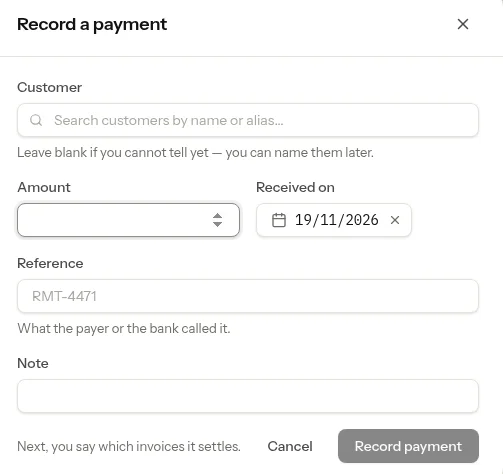
A payment recorded from the Payments page starts with the money itself: who paid, how much, when and the reference. "Next, you say which invoices it settles."
You can pick the invoices and amounts yourself, or let duebird use what the customer's remittance says. Otherwise duebird matches the payment for you: an exact amount first, then an exact set of invoices, then amounts less an early payment discount, then the oldest invoices first. It skips disputed invoices.
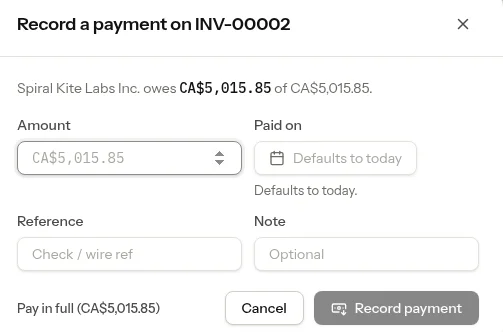
A payment recorded from an invoice is tied to that invoice from the start, with Pay in full to fill in the open balance.
Every payment appears on the Payments list and has its own detail page. See Payment Details: Where the Money Went.
Record a Payment From the Payments Page
- Click Payments in the sidebar, then + Record a payment. You can also choose + New > Payment received.
- Under Customer, search by name or alias. "Leave blank if you cannot tell yet: you can name them later."
- Enter the Amount and the date it was Received on.
- Under Reference, enter "What the payer or the bank called it", such as a cheque number or transfer reference.
- Add a Note if useful, then click Record payment.
- Say which invoices it settles, or leave it to duebird to match.
Record a Payment From an Invoice
- Open the invoice and click Record payment. It is also in the invoice's more menu, with the open amount.
- Enter the Amount, or click Pay in full for the whole balance.
- Paid on "Defaults to today". Change it if the money arrived earlier.
- Add a Reference, such as a cheque or wire reference, and an optional Note.
- Click Record payment.
Tips
- Always add the reference. It is how you match the payment to the bank statement later.
- Not sure who paid? Leave the customer blank and name them later.
- Settle disputed invoices by hand. duebird skips them when it matches.
Frequently Asked Questions
Can one payment settle several invoices?
Yes. Pick the invoices and amounts, or let duebird match them.
What if I do not know who sent the money?
Leave Customer blank. You can name them later.
Do I need to record payments duebird read from a remittance?
No. Payments duebird records from remittances already appear on the Payments list. See How duebird Reads Remittances.