
Set Up Sales Tax: Registrations, Locations and Rates
Tell duebird where you are registered, and check the rates your invoices charge.
3 min readUpdated
Tax settings decide whether and how your invoices charge tax.
"Not registered means no tax on any document." Once you add a registration, duebird works out the tax on each line.
How It Works
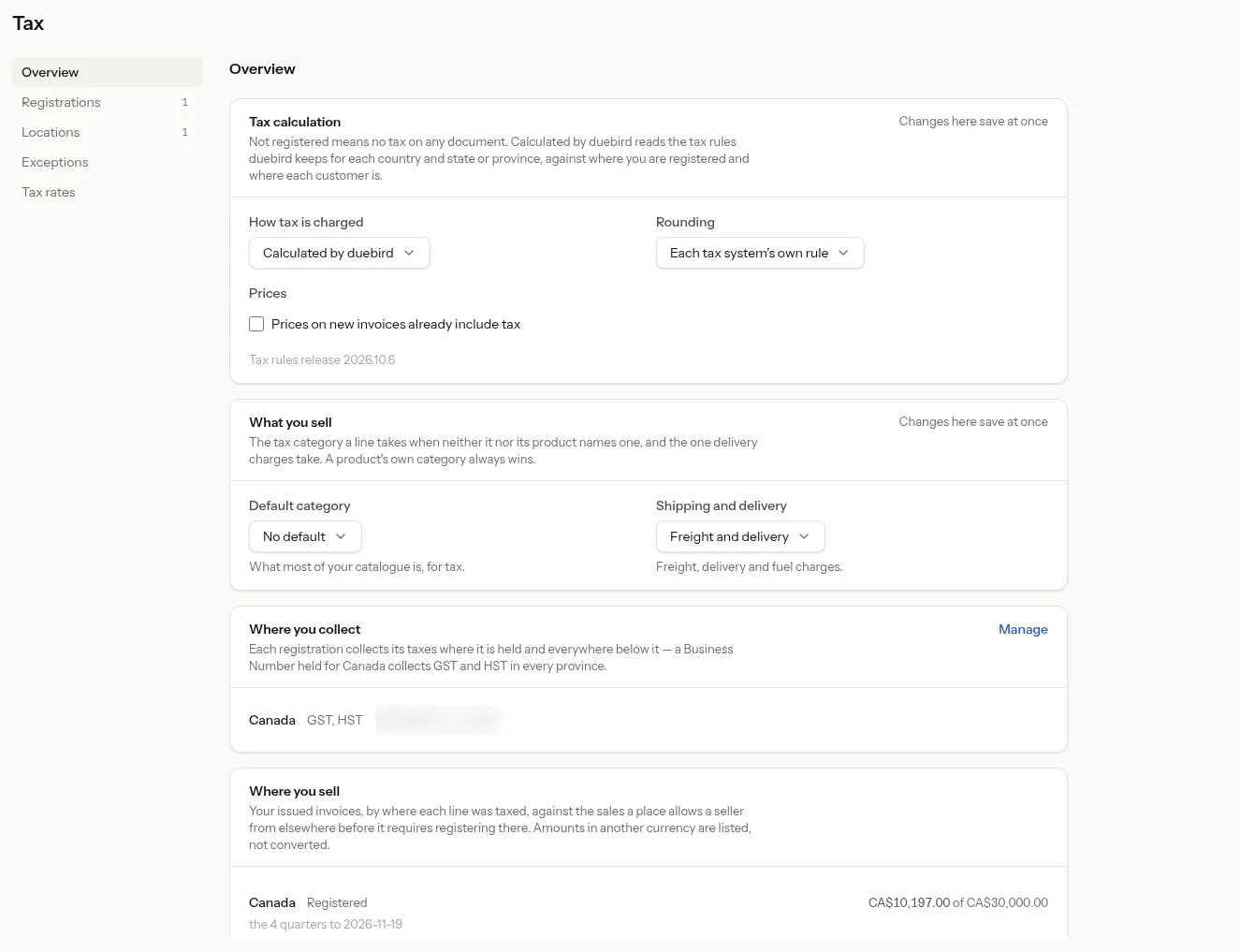
Settings > Tax has five tabs: Overview, Registrations, Locations, Exceptions and Tax rates.
Overview has four parts:
- Tax calculation: how tax is charged, rounding, and whether prices include tax.
- What you sell: the default tax category for lines, and the one for shipping and delivery.
- Where you collect: your registrations, with Manage. "Each registration collects its taxes where it is held and everywhere below it." For example, a Business Number held for Canada collects GST and HST in every province.
- Where you sell: your sales by place against each place's threshold.
Changes on Overview "save at once". Manage opens the Registrations tab.
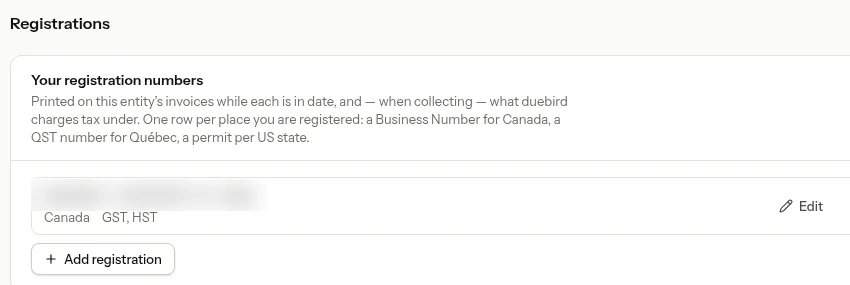
Registrations holds "Your registration numbers", printed on your invoices. There is one row per place you are registered, for example a Business Number for Canada, a QST number for Quebec, or a permit per US state.
Locations holds the places you ship from, including your default ship-from location.
Exceptions holds any departures from the standard rules. With none: "No exceptions. The tax rules apply as they stand."
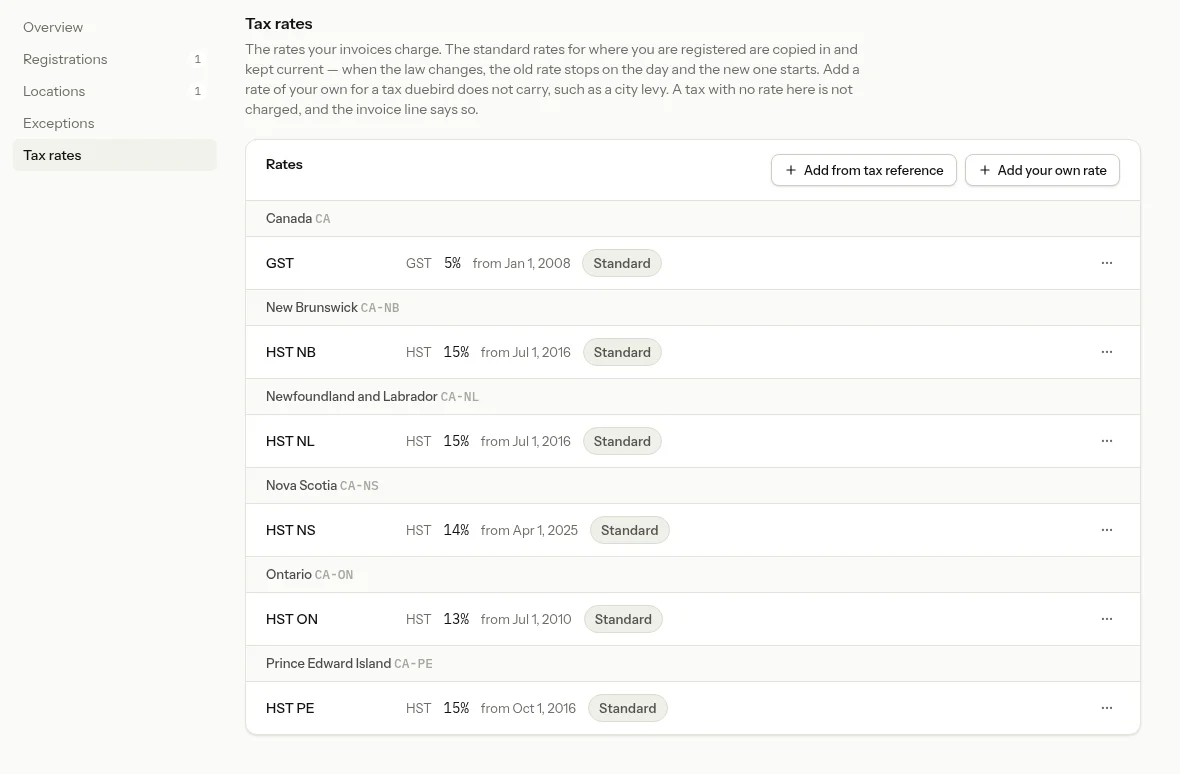
Tax rates lists "The rates your invoices charge." The standard rates for where you are registered "are copied in and kept current: when the law changes, the old rate stops on the day and the new one starts."
Check Your Registrations
- Open your avatar menu and choose your organization's settings.
- Click Tax. Overview opens.
- Under Where you collect, check each registration. Click Manage to change them.
Add a Registration or Location
- Click the Registrations tab, then + Add registration. Click Edit to change one.
- Click the Locations tab and + Add location for each place you ship from. Mark your default ship-from location.
- Check the Exceptions tab. Add an exception only where a standard rule does not apply to you.
Set What You Sell
- On Overview, under What you sell, choose the Default category: "What most of your catalogue is, for tax."
- Choose the Shipping and delivery category for freight, delivery and fuel charges.
Categories include Goods, Prewritten software, Software as a service, Data processing and information services, Professional services, Repair of goods, Installation, Maintenance contract, Equipment rental, Construction services, Cleaning and janitorial, Staffing and labour, Training, Freight and delivery and Fees outside tax, or No default.
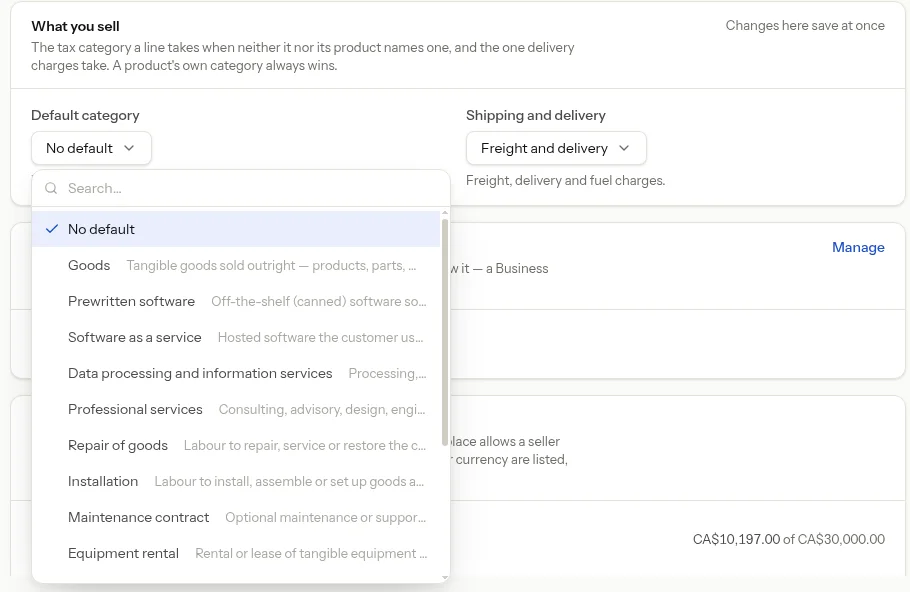
A product's own category always wins over the default.
Review Tax Rates
- Click the Tax rates tab.
- Check the rates listed for each place, with the date each one started.
- To add a tax duebird does not carry, such as a city levy, click + Add your own rate. + Add from tax reference adds one of duebird's standard rates.
Tips
- Add every registration you hold before issuing invoices.
- Set a default category that fits most of your catalogue, then set exceptions on the products that differ.
- "A tax with no rate here is not charged, and the invoice line says so." Check the invoice when you add a new place.
Frequently Asked Questions
What happens if I am not registered anywhere?
No tax is charged on any document.
Do I have to update rates when the law changes?
No. Standard rates are kept current. The old rate stops on the day and the new one starts.
Can I add a local tax?
Yes. Use + Add your own rate on Tax rates.