
Quote Settings: Validity, Terms and Default Wording
Set the accent colour, how long new quotes are valid and the wording every new quote starts with.
2 min readUpdated
Settings > Quotes sets what a new quote starts with: an accent colour, how long it is valid and the wording above and below the items.
"Copied onto each new quote, where it can be changed for that customer. Quotes already written keep what they have."
How It Works
Quote settings are set per organization. They fill in each new quote, and you can still change the wording on any single quote. The page has two cards, Colour and What a new quote starts with.
- Accent, under Colour: a colour swatch and a box for the colour value.
- Valid for: a number of days, "Counted from the day the quote is created". The default is 30.
- Opening: "Above the items. A blank line starts a new paragraph."
- Commercial terms: "Under the items."
- Closing: "Below the terms."
Quotes are not numbered until they are sent. A new quote reads "Not numbered yet: Given when you send it".
Change Your Quote Defaults
- Open the avatar menu and click Settings, then Quotes.
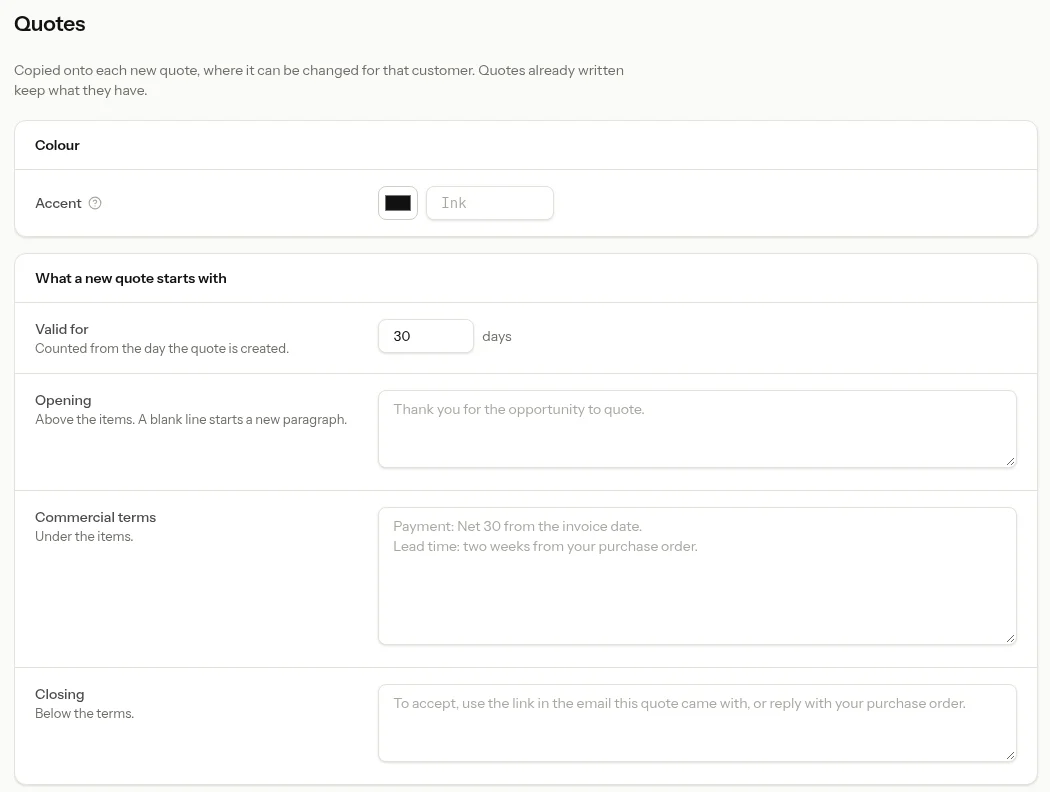
- Under Colour, choose the Accent colour.
- Under What a new quote starts with, set Valid for in days.
- Write the Opening, Commercial terms and Closing you want on new quotes.
Write Wording That Works
The empty boxes suggest wording you can use or replace:
- Opening: a short thank-you, for example "Thank you for the opportunity to quote."
- Commercial terms: payment and delivery, for example "Payment: Net 30 from the invoice date. Lead time: two weeks from your purchase order."
- Closing: how to accept, for example "To accept, use the link in the email this quote came with, or reply with your purchase order."
Tips
- Keep terms that change per deal out of the defaults. Edit them on the quote instead.
- Make sure your Closing tells customers how to accept.
Frequently Asked Questions
Do new settings change quotes I already wrote?
No. "Quotes already written keep what they have."
Can one quote have different wording?
Yes. The defaults are copied onto each new quote, where they can be changed.
When does a quote get its number?
When you send it.