
Turn a Customer Purchase Order Into Billing Lines
How duebird reads a customer's purchase order into authorized lines, and what each line needs before you can bill it.
3 min readUpdated
Purchase orders arrive as documents. There is no form for typing one in: duebird reads the customer's PO into authorized lines.
Each line needs a product before a billing order can be made from it. The PO page shows what is authorized, what is billed and what still needs your attention.
How It Works
POs come in by Upload, + New > Purchase order ("Upload their PO and duebird reads it"), email or an API token. duebird reads each one and lists it under Purchase orders, checked against the quote it relates to.
- PO number and Customer (with the site).
- Against quote: the quote the PO relates to, if any.
- Status, Issued and Lines.
- Unmatched: how many PO lines are not yet matched to a product and unit. At 0, the PO can become an order.
- Authorized, Billed and Open: how much of the PO is authorized, billed and still open.
A PO is linked to a quote when it cites the quote's number, or when the customer accepts the quote online and enters a PO number.
Find a Purchase Order
- Click Purchase orders in the sidebar.
- Search by "PO number, customer...", or filter by Status and Customer.
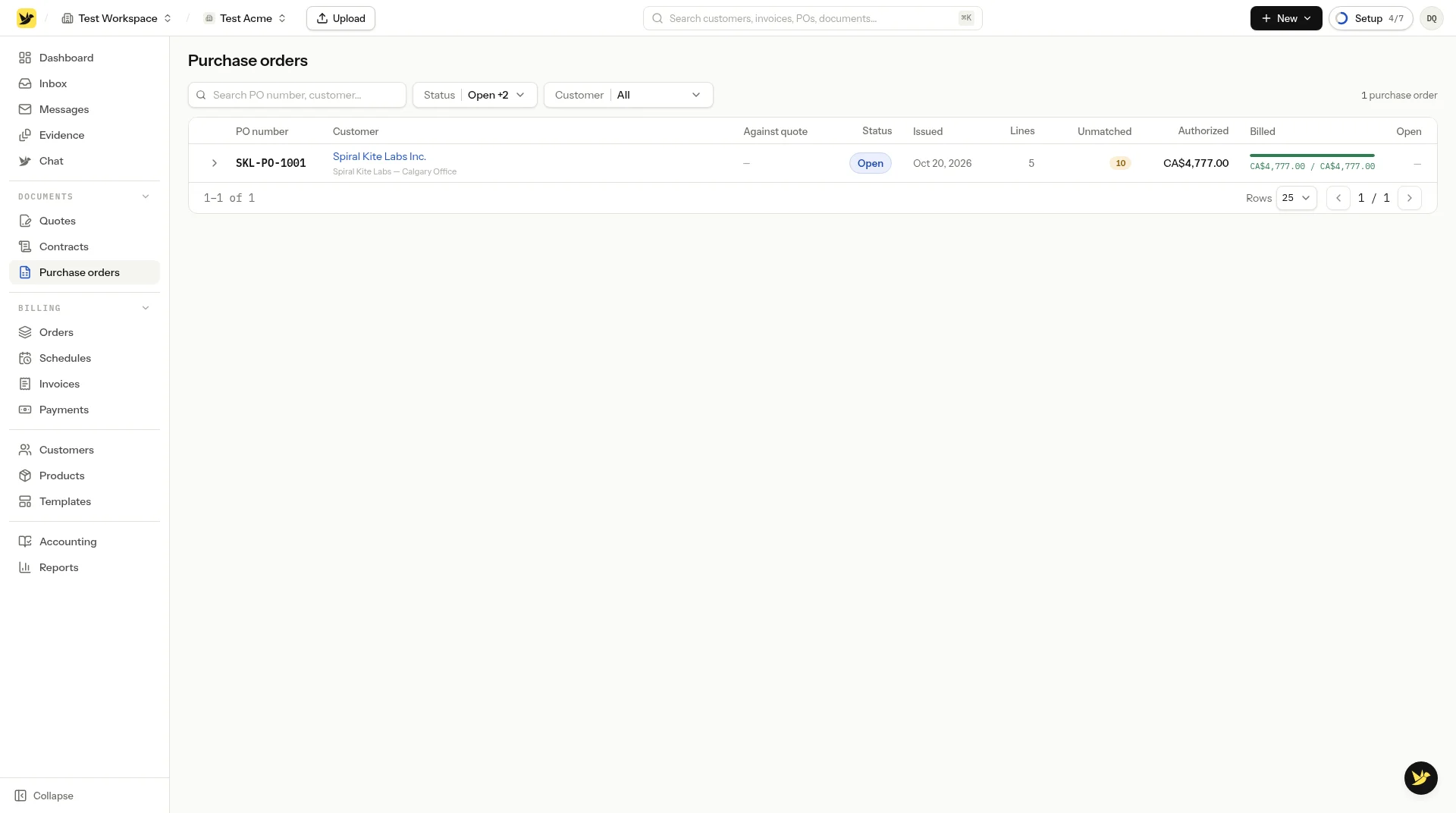
- Expand a row to see its lines, or click a PO number to open it.
Read the Purchase Order
- The header shows the status (for example Open), when it was issued, the site, a line summary such as "5 lines · 0 open" and the AUTHORIZED TOTAL, with a bar comparing billed and authorized amounts.
- Read any warning under the header, for example "5 lines have no product yet, so no billing order can be made from this PO".
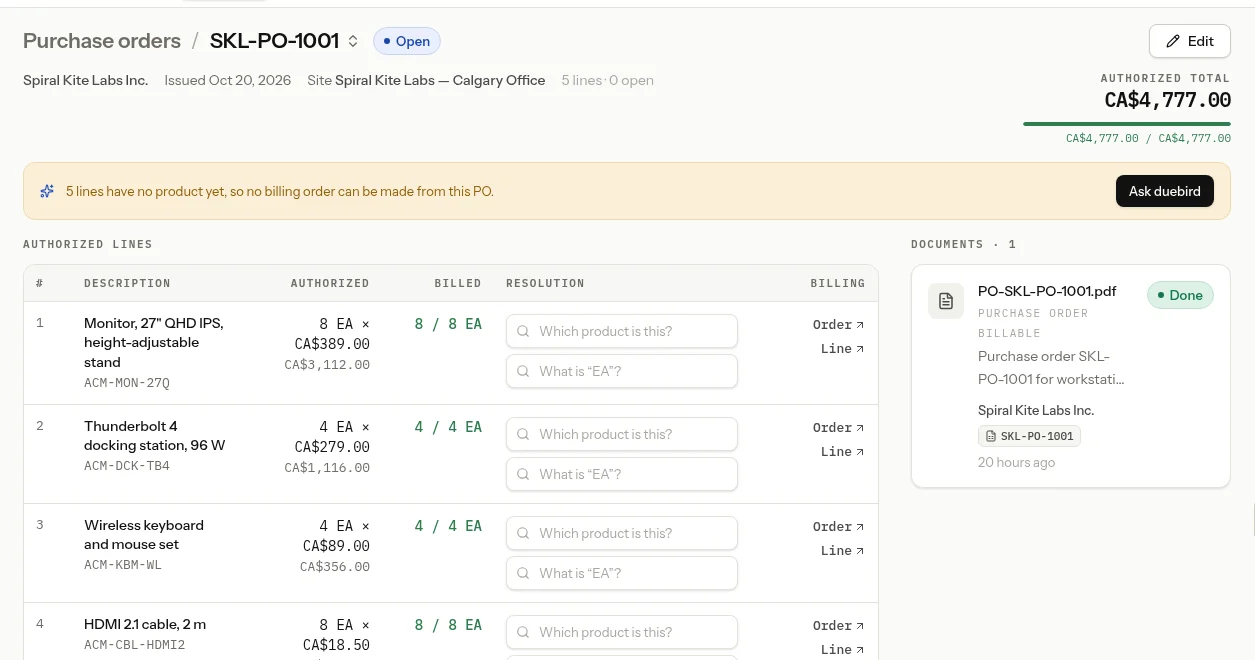
- Under AUTHORIZED LINES, check each line: description and SKU, authorized quantity and price, Billed, Resolution and Billing, which links to the order or line it was billed on.
- Under DOCUMENTS, open the source PDF. It carries its tags, for example PURCHASE ORDER · BILLABLE, and its status.
Resolve Lines That Need a Product
- Find the line in AUTHORIZED LINES. The Resolution column asks "Which product is this?" and, where the unit is unclear, a question such as "What is "EA"?".
- Answer on the line, or click Ask duebird in the warning to work through it with duebird.
- duebird saves the customer's wording for that product, so later POs from the same customer match it on their own.
An order can be made from the PO once every line is matched to a product and unit.
Make an Order From the PO
- Choose + New > Order.
- Choose From a purchase order ("Bring the PO's lines across").
- The order tracks ordered, delivered and invoiced quantities, and its lines become Ready to bill.
Tips
- Sort out lines with no product early. You answer once per customer wording, and later POs match on their own.
- Open the source PDF under DOCUMENTS to check a line against what the customer actually sent.
- The Billing links on each line take you straight to the order or line it was billed on.
Frequently Asked Questions
Can I type a purchase order in by hand?
No. POs arrive as documents, by upload, email or API, and duebird reads them.
Why can't I make an order from this PO?
Every line needs a product and unit first. The Unmatched count and the warning on the PO show how many are left.
How does a PO get linked to my quote?
When the PO cites the quote's number, or when the customer accepts the quote online and enters their PO number.
Where do I see how much of a PO is billed?
In the Billed column on the list, and in the authorized total bar at the top of the PO.