
Customer Balances, Sales, Ready to Bill and Tax Collected Reports
Four more reports: how balances moved, what you sold, what is ready to bill, and the tax you charged.
2 min readUpdated
Besides AR Aging, Reports has Customer balances, Sales, Ready to bill and Tax collected. Each has Export CSV.
How It Works
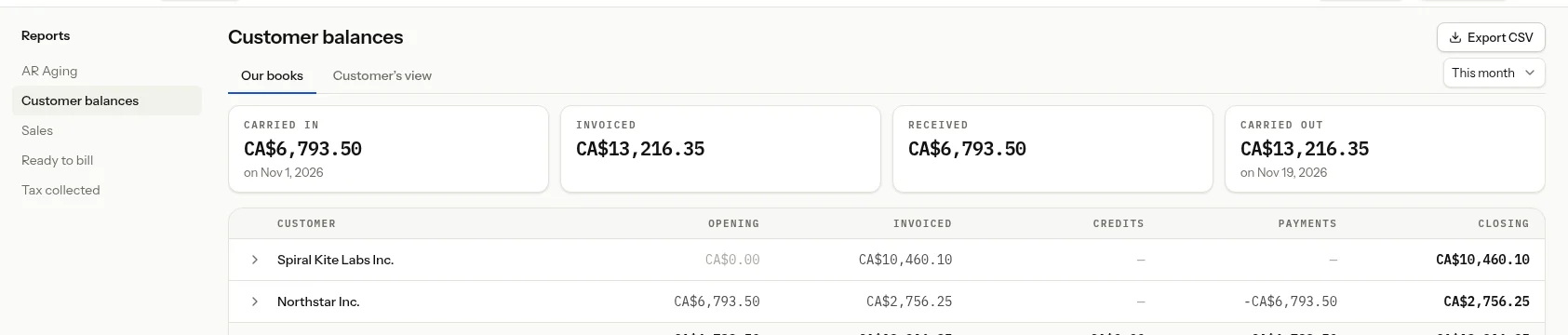
- Customer balances: how each customer's balance moved over a period. Choose Our books or Customer's view. The top shows CARRIED IN, INVOICED, RECEIVED and CARRIED OUT. Each customer shows opening, invoiced, credits, payments and closing.
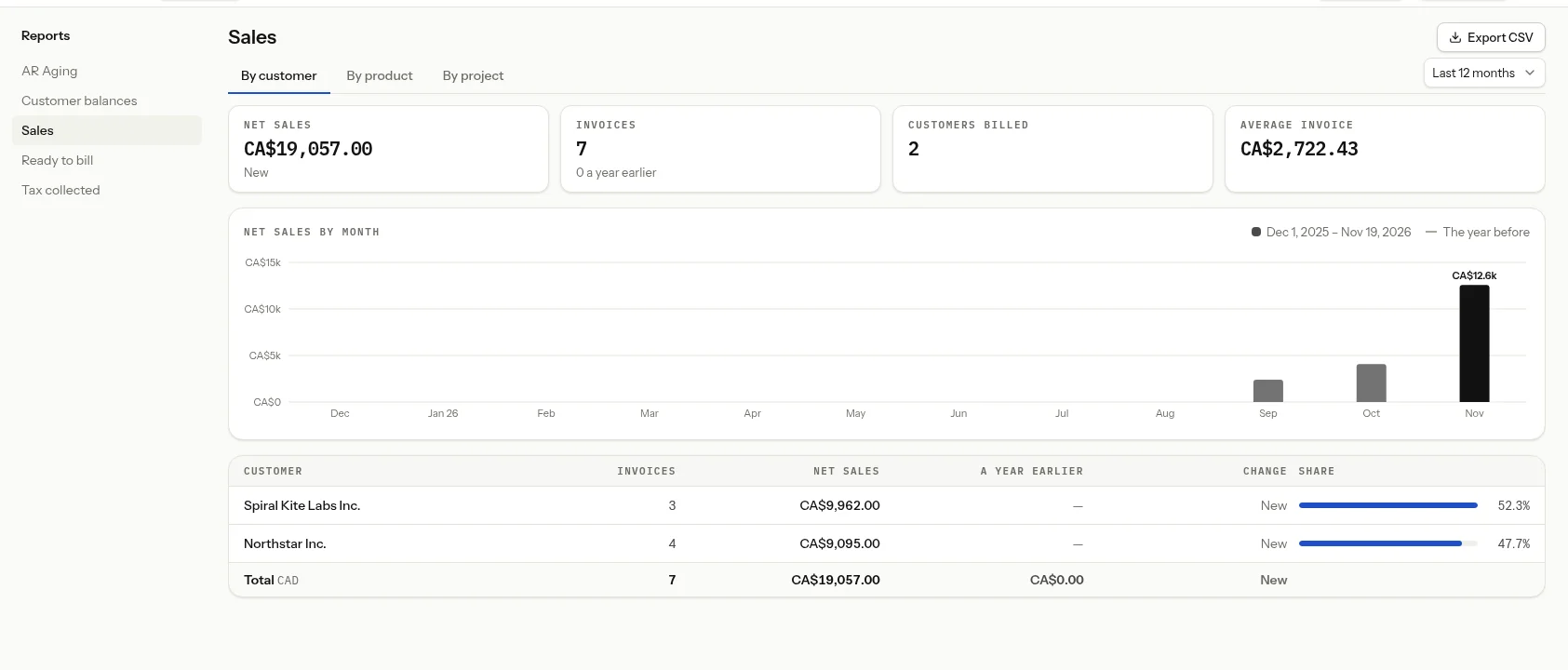
- Sales: By customer, By product or By project, for a period such as the last 12 months. It shows NET SALES, INVOICES, CUSTOMERS BILLED and AVERAGE INVOICE, a monthly chart against the year before, and each row's change and share.
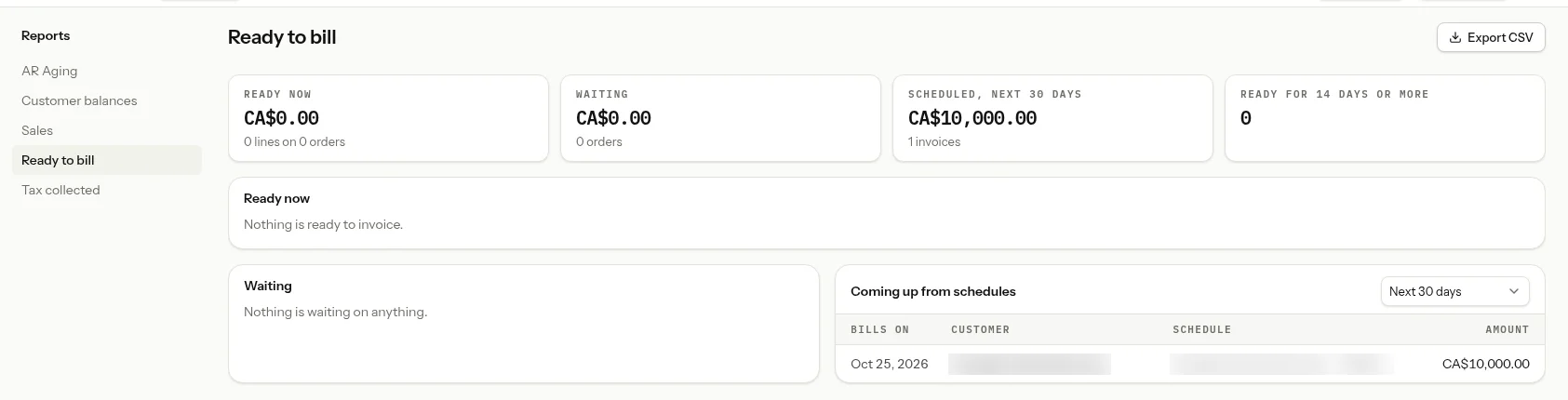
- Ready to bill: READY NOW, WAITING, SCHEDULED, NEXT 30 DAYS and READY FOR 14 DAYS OR MORE, with what is coming up from schedules.
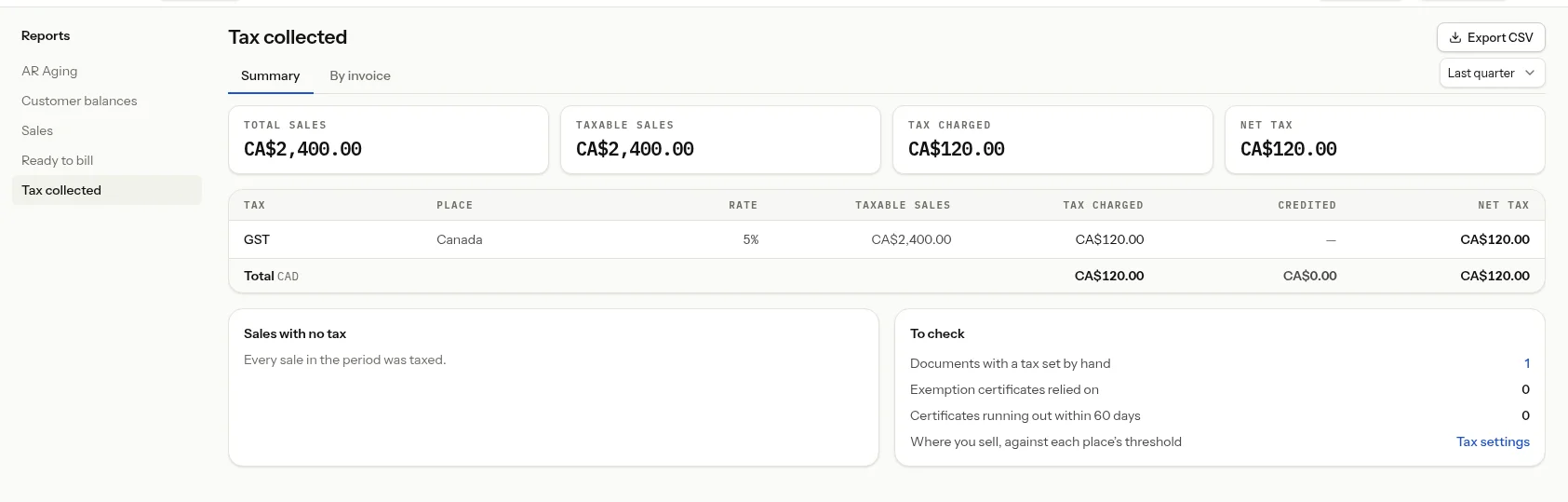
- Tax collected: Summary or By invoice for a period such as last quarter. It shows TOTAL SALES, TAXABLE SALES, TAX CHARGED and NET TAX by tax and place, with Sales with no tax and a To check list.
Read Customer Balances
- Click Reports, then Customer balances.
- Choose the period, and Our books or Customer's view.
- Expand a customer to see the detail.
Read Sales
- Click Sales and pick By customer, By product or By project.
- Choose the period and compare with the year before.
Read Ready to Bill
- Click Ready to bill.
- Check READY NOW and READY FOR 14 DAYS OR MORE first. These are bills you can send today.
- Review what is Coming up from schedules in the next 30 days.
Read Tax Collected
- Click Tax collected, then choose Summary or By invoice and the period.
- Check the totals by tax and place.
- Work through To check: documents with a tax set by hand, exemption certificates relied on, certificates running out within 60 days, and where you sell against each place's threshold.
Tips
- Check Ready to bill weekly so nothing waits too long.
- Use Customer's view when reconciling with a customer's statement.
- Export Tax collected for your tax return preparer.
Frequently Asked Questions
What is the difference between Our books and Customer's view?
Our books includes write-offs. Customer's view shows what the customer owes by their own statement, without write-offs.
Can I see sales by product?
Yes. Choose By product on Sales.
Which report shows what I can invoice today?
Ready to bill, under READY NOW.